How to Export the Monthly Class Attendance Report
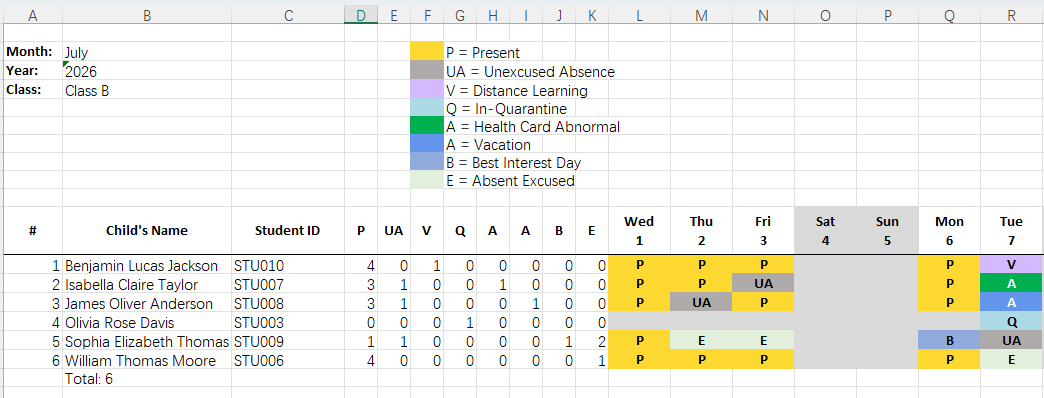
Learning Genie now lets you download a pre-formatted monthly attendance spreadsheet directly from Attendance Review. The report summarizes daily attendance, absences, and any custom status codes for a selected class and month, significantly reducing manual data entry for agencies and grantees.
Before You Begin
You must have the Attendance Module enabled for your agency.
Custom Reporting Codes must be configured in your Attendance settings if you want them reflected in the export (see How to add or remove off-site reasons).
Step-by-Step: Download the Monthly Class Attendance Report
Log in to the Learning Genie web portal at web.learning-genie.com.
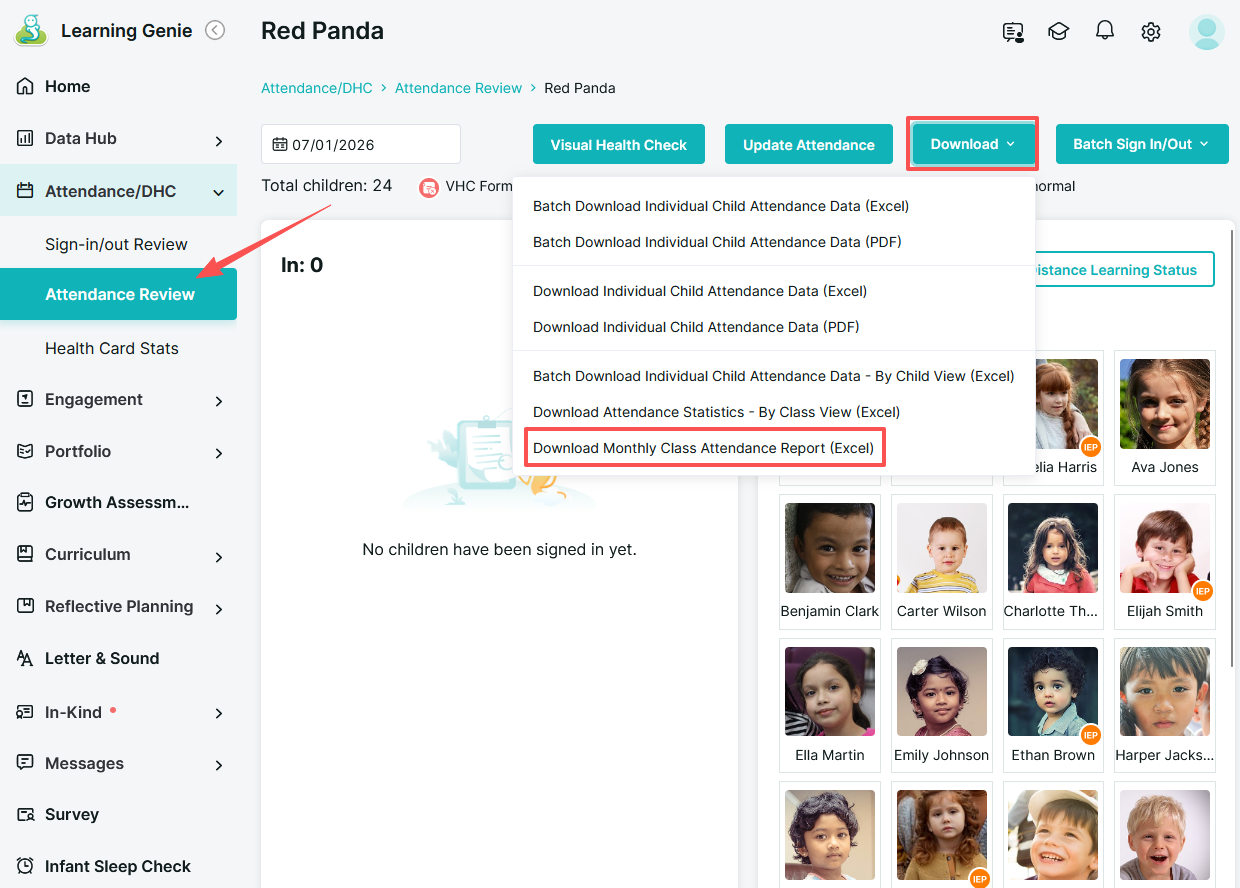
From the left-hand menu, go to Attendance > Attendance Review.
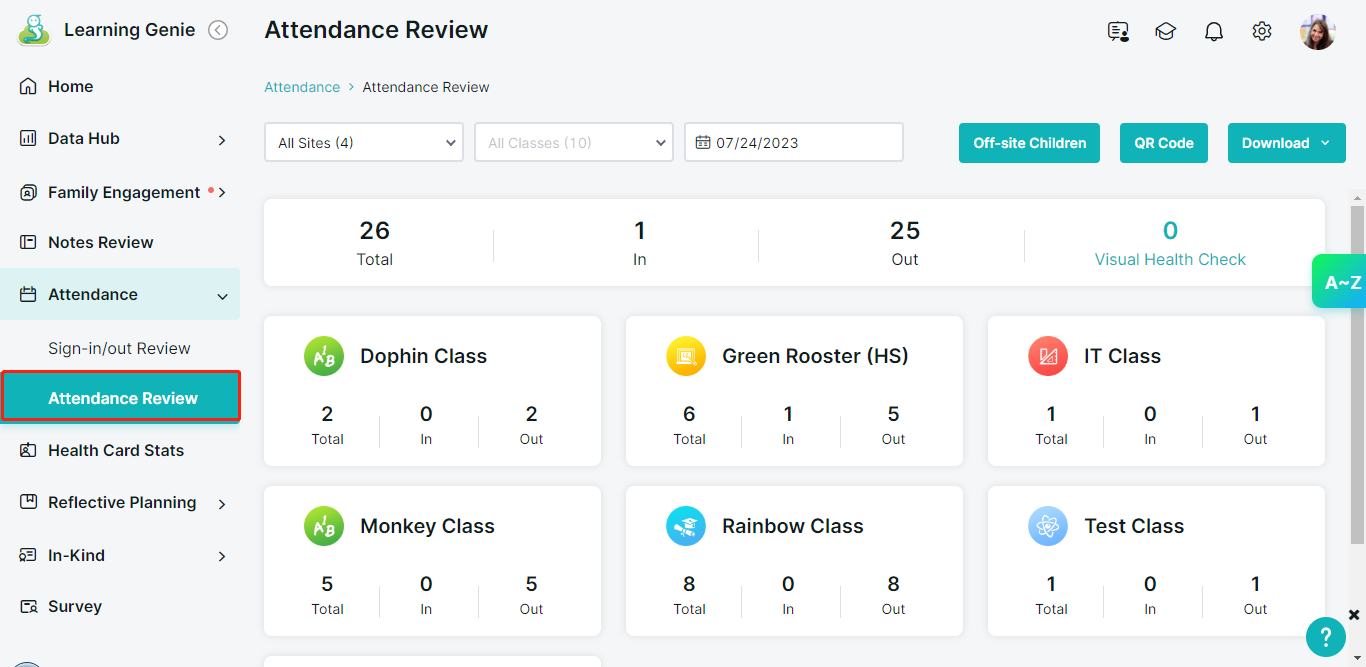
Select the site and classroom you want to report on.
Locate the Download option and select Monthly Class Attendance Report.
Choose the month and year for the report.
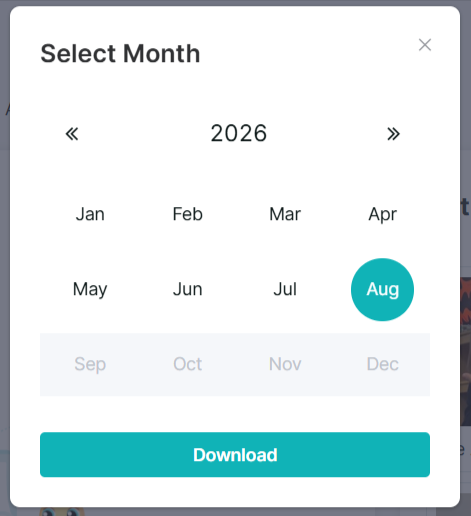
Click Download to create the spreadsheet.
Once the file is ready, click Download to save the Excel file to your device.
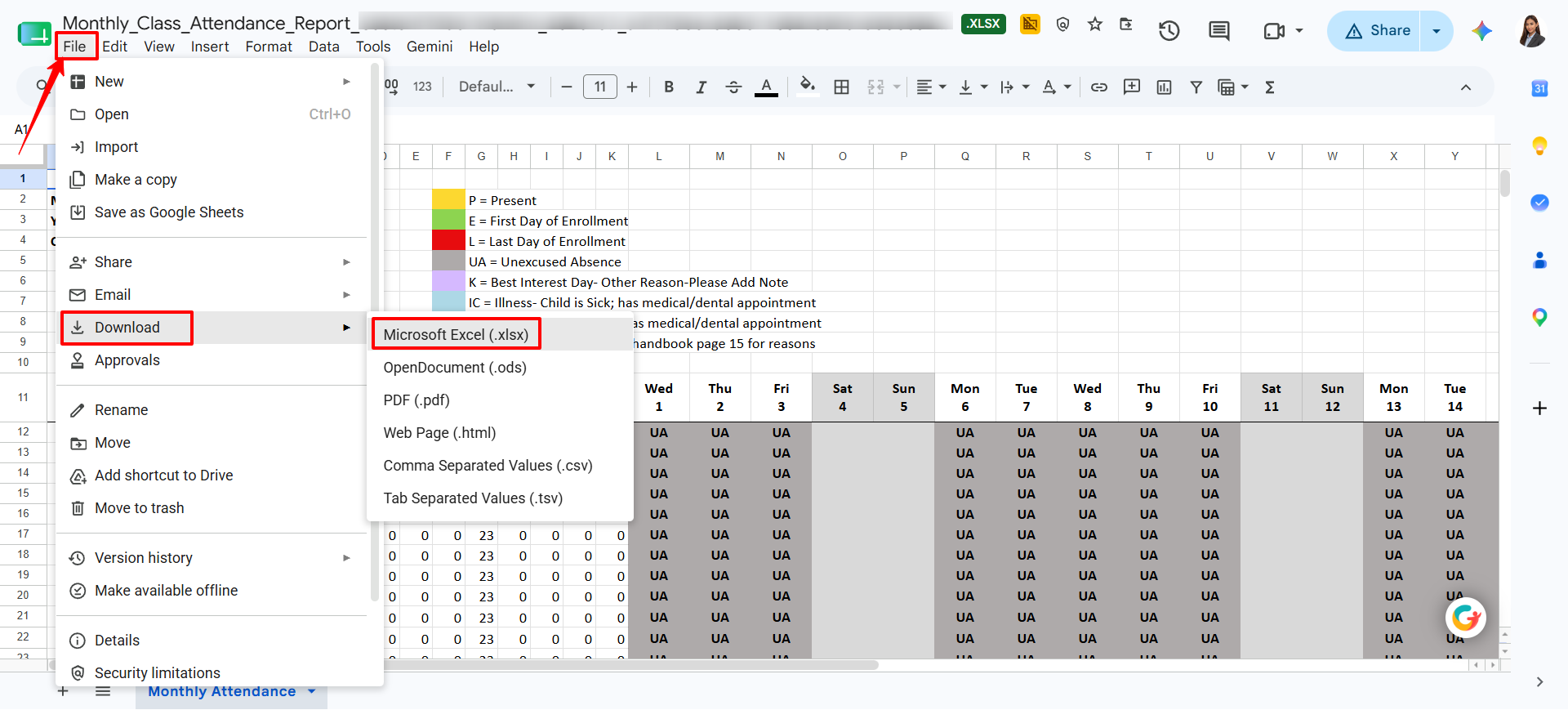
About the Report
The exported spreadsheet includes:
Daily attendance status for each child across the selected month
Absences and their associated reasons
Custom attendance status codes configured by your agency
This report is designed to be submitted or uploaded to external agency systems with minimal additional formatting.
Need Help?
If you run into issues or have questions, the Learning Genie Support Team is here for you!
Email: help@learning-genie.com
Phone: 760-576-4822