Resetting Your Roster for the New School Year
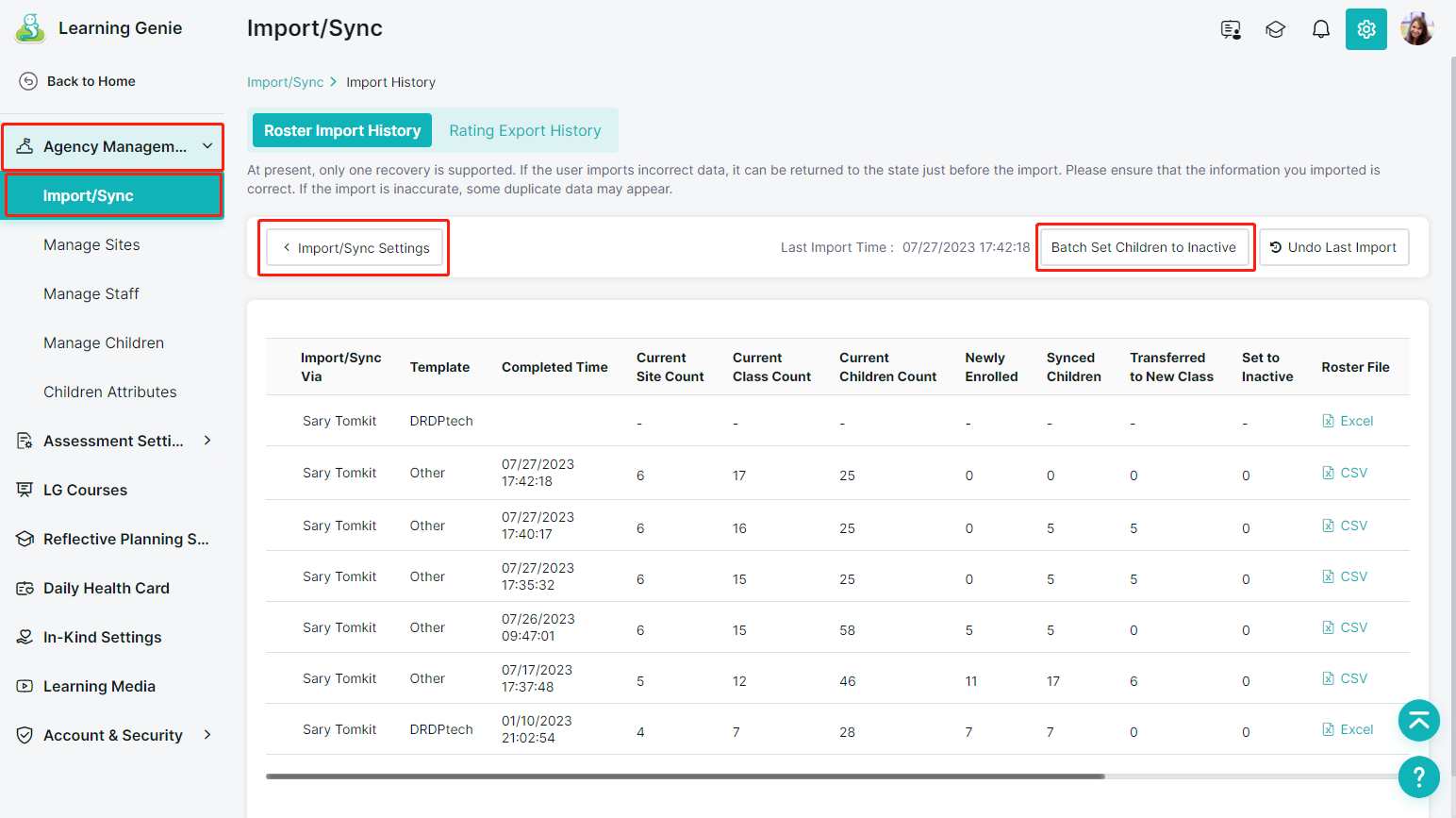
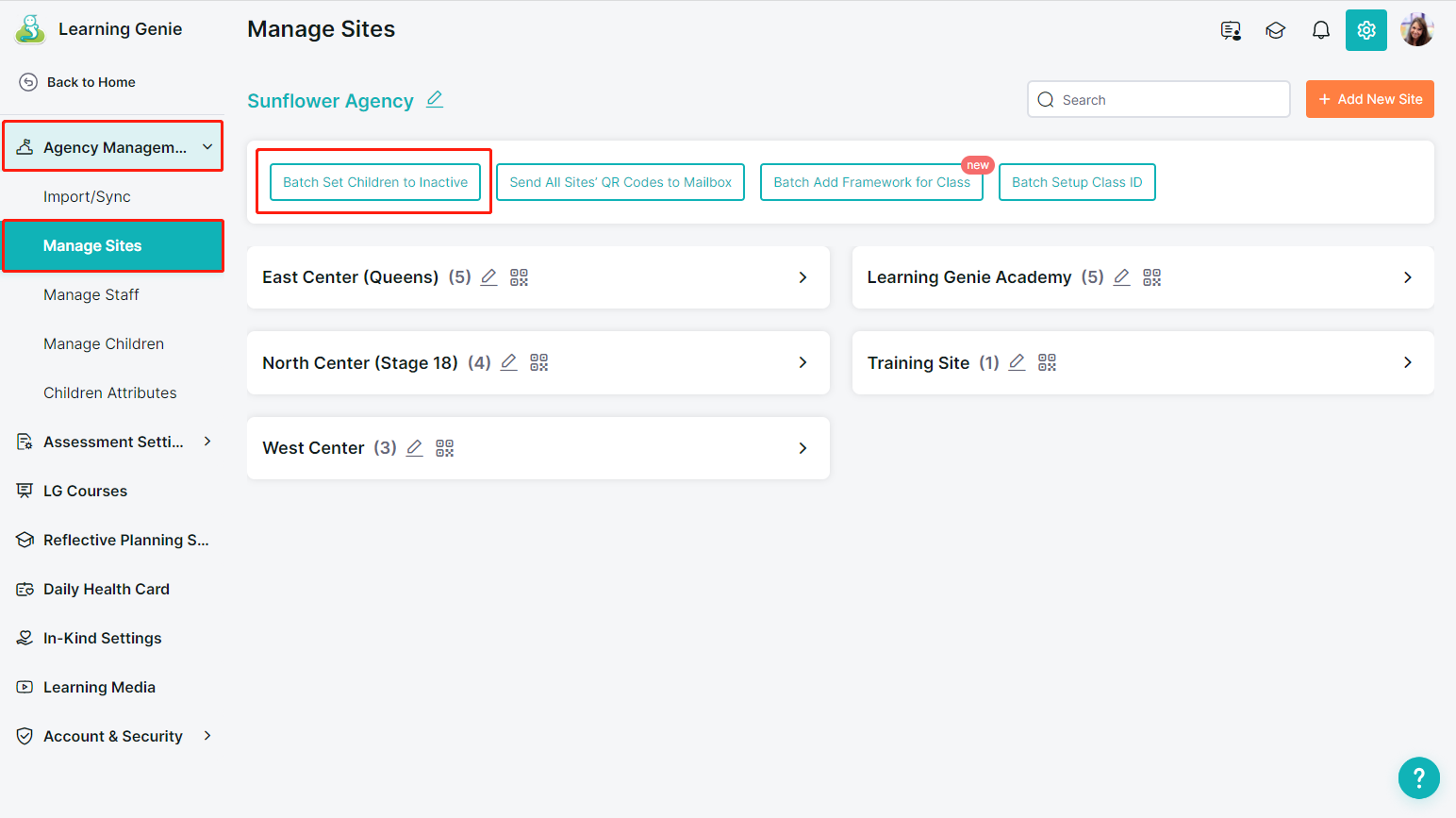
To help you prepare for a fresh start each school year, Learning Genie provides a quick way to batch-set all children in your agency to inactive. This is useful for clearing out last year's roster and updating it with current enrollments. You can perform this action from any of the following pages:
“Agency Management” > “Import/ Sync” > “Roster Import History”
“Manage Sites” main page
When you initiate the process to batch-set all children to inactive at the start of a new school year, Learning Genie displays a confirmation pop-up designed to prevent accidental mass deactivation of your entire roster.
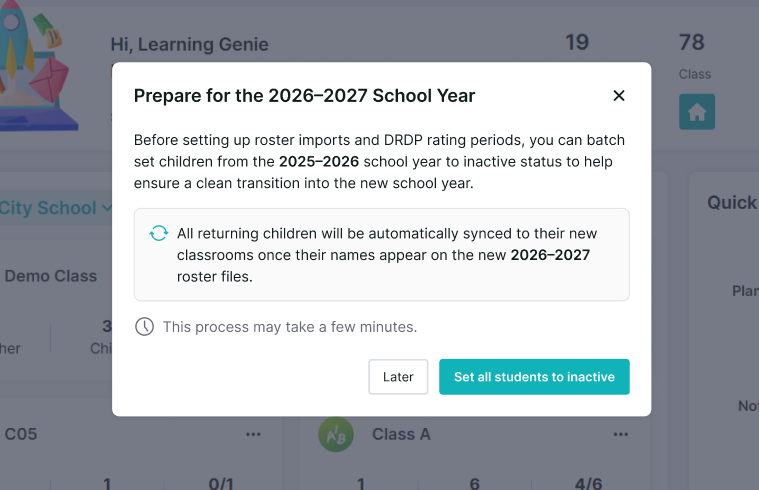
⚠️ Important Warning
Setting all children to inactive will remove every currently enrolled child from their active classroom roster. This action is intended for the start of a new school year when you are ready to re-enroll a fresh cohort.
Do not proceed unless you are certain you want to deactivate all currently active children. Once set to inactive, children must be manually restored or re-imported before teachers can record observations or attendance for them.
When to Use This Feature
Use the batch-inactive option only when:
The current school year has officially ended.
You are ready to import or manually enroll your new school year roster.
You have confirmed with your team that deactivating the full roster will not disrupt ongoing assessments or attendance records.
How to Proceed
Read the pop-up carefully before confirming.
If you are ready to proceed, click the confirmation button as indicated in the dialog.
If you are not ready, click Later to exit without making changes.
To restore a child who was set to inactive by mistake, see How to Restore a Child in Learning Genie .
Please reach out to us if you have any questions!
(760)576-4822