How to Restore a Child in Learning Genie
When a previously enrolled child returns to your program, you can easily restore their profile from the inactive list. All their data remains intact.
🔹 Web Portal Instructions
On the home page
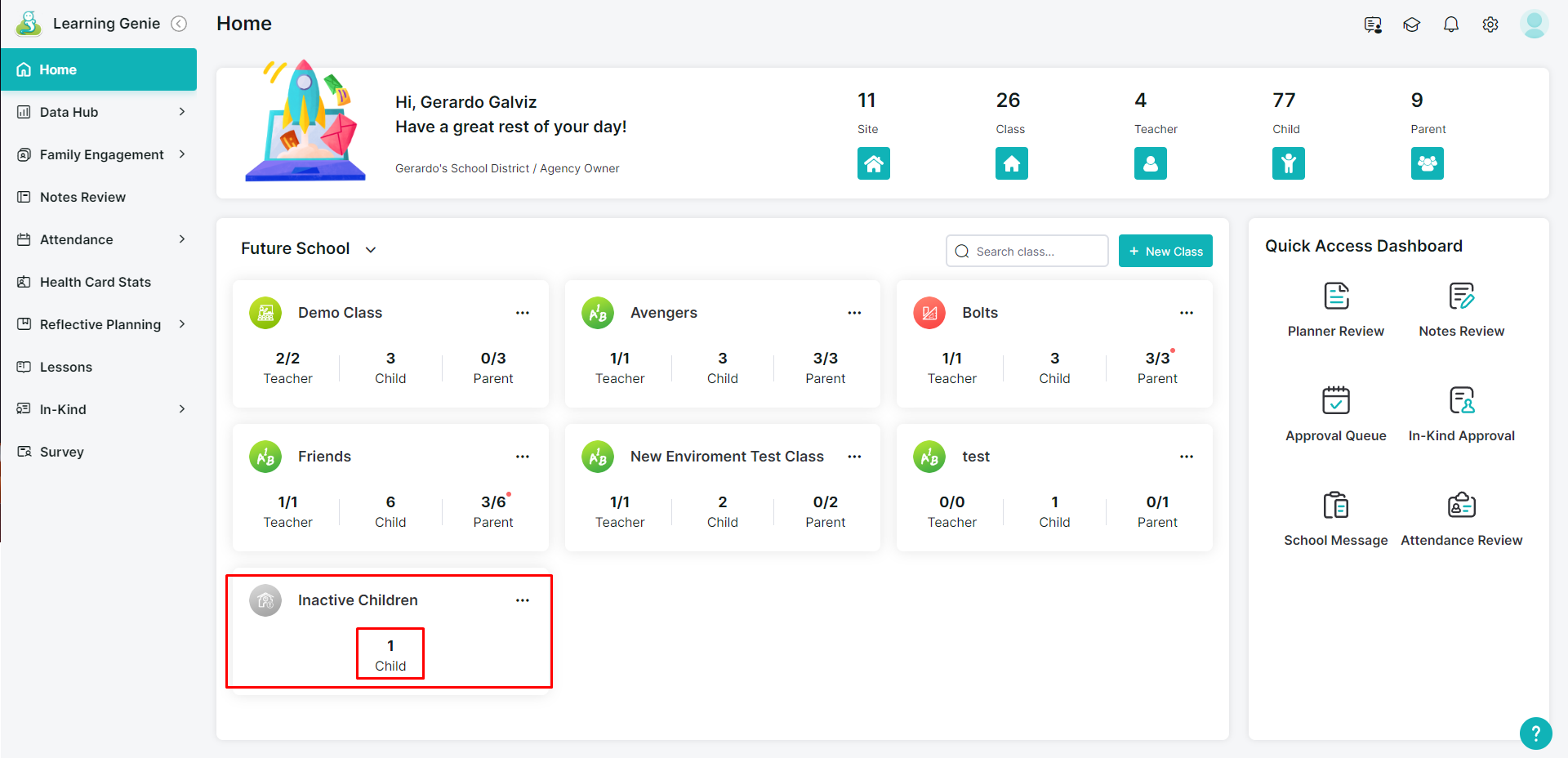
1. Locate the "Inactive Children" classroom and then click "Child".
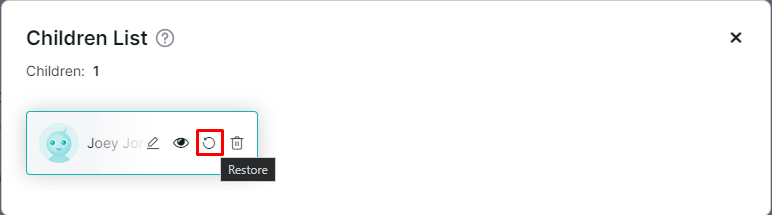
2. Hover over the child's name you want to restore and click on the arrow in the shape of a circle to restore the child.
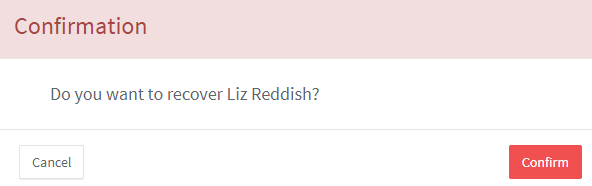
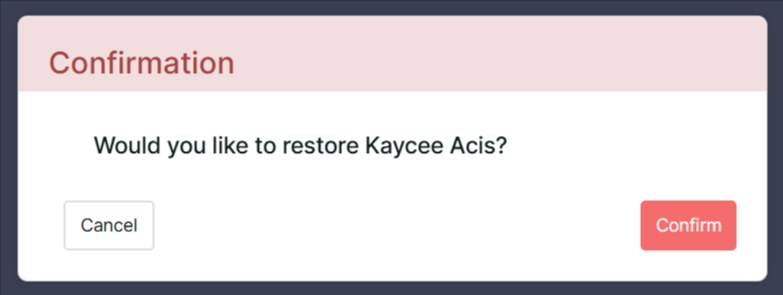
3. Select “Confirm”.
Admin Settings
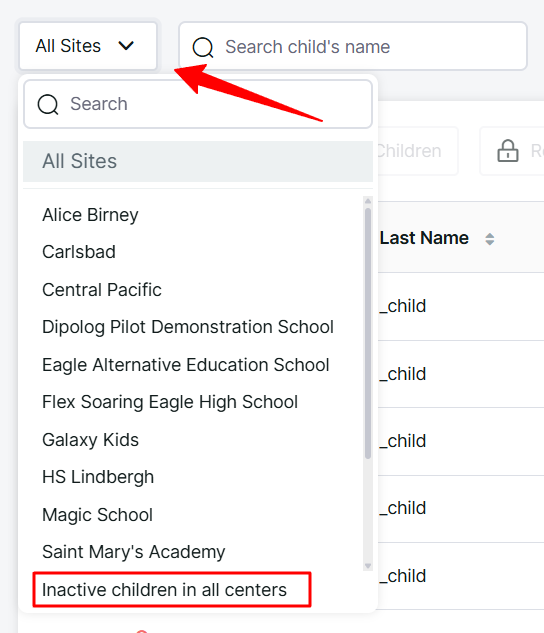
1. Go to Admin Settings > Agency Management > Manage Children
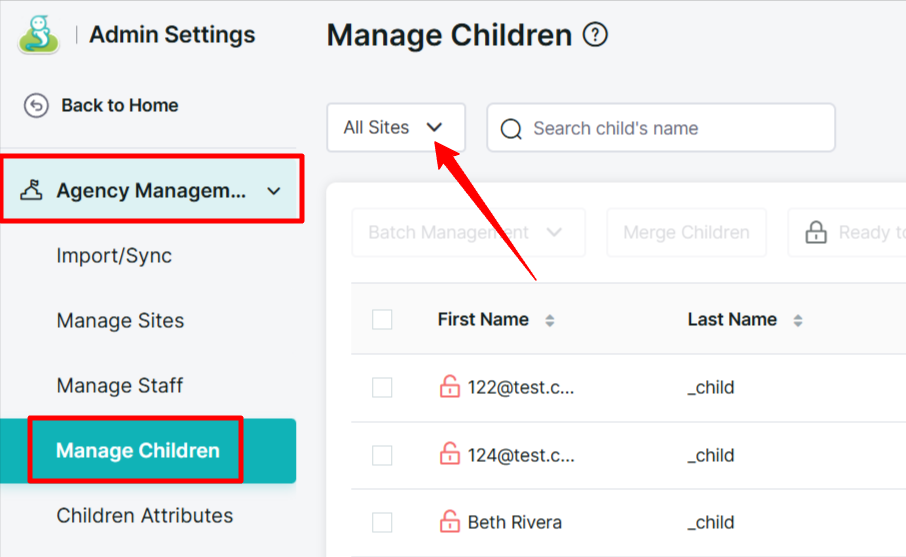
2. Use the Site filter (dropdown) and select "Inactive children in all centers" or simply search the child's name in the search bar.
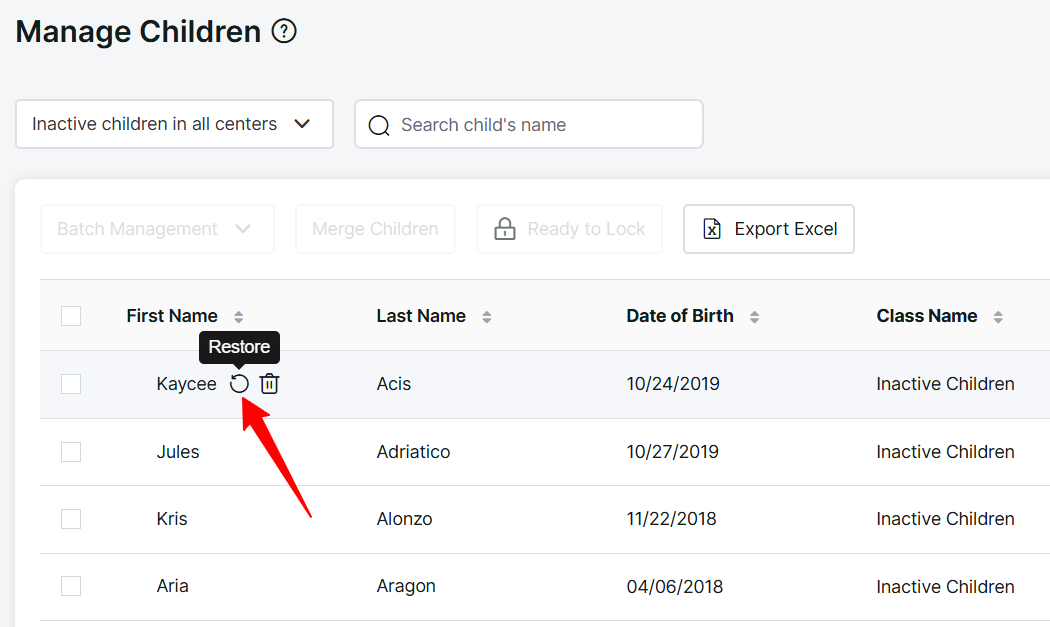
3. Hover over the name of the child you want to restore and click on the restore button.
4. Then confirm
🔹 Mobile App Instructions
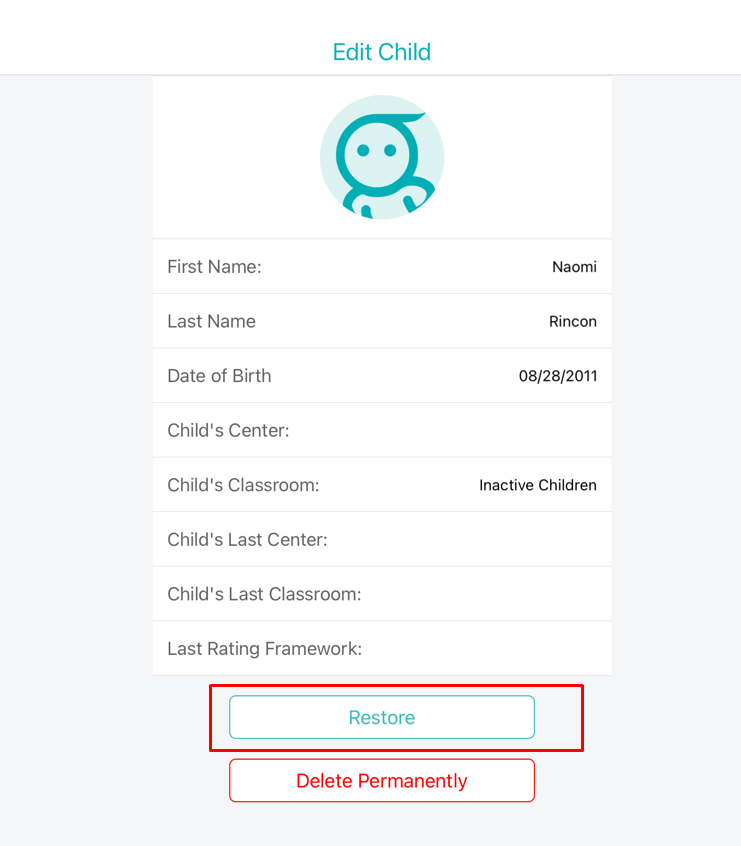
1. Select the child under the "Inactive Children" list.
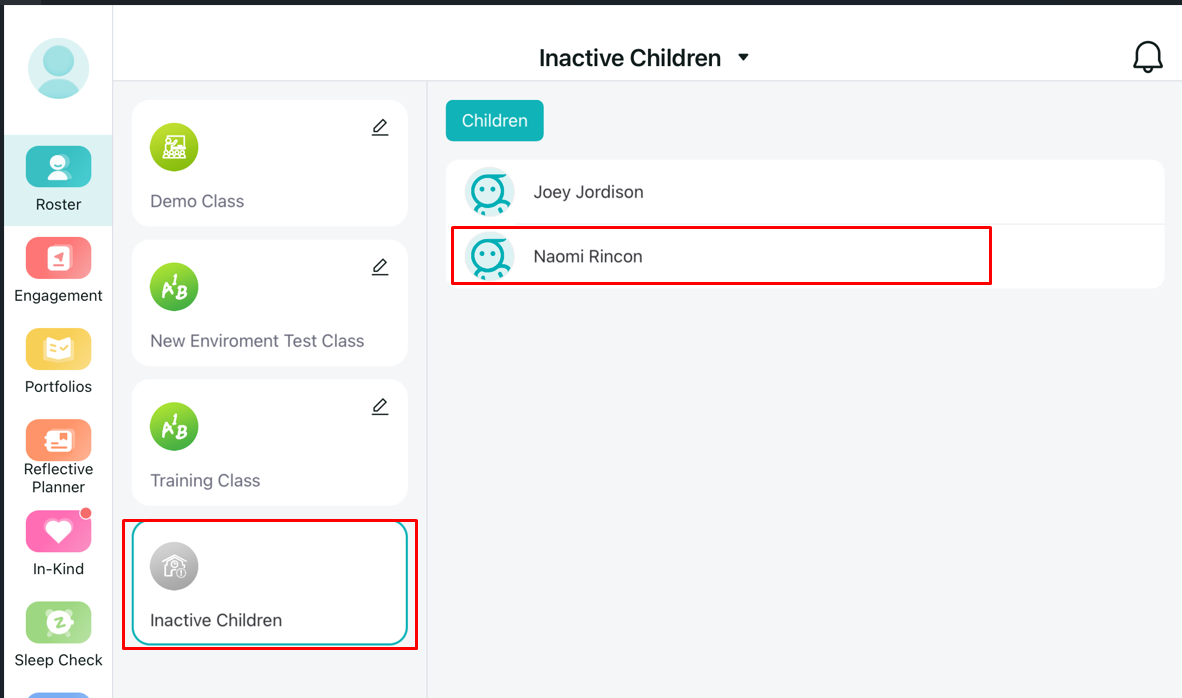
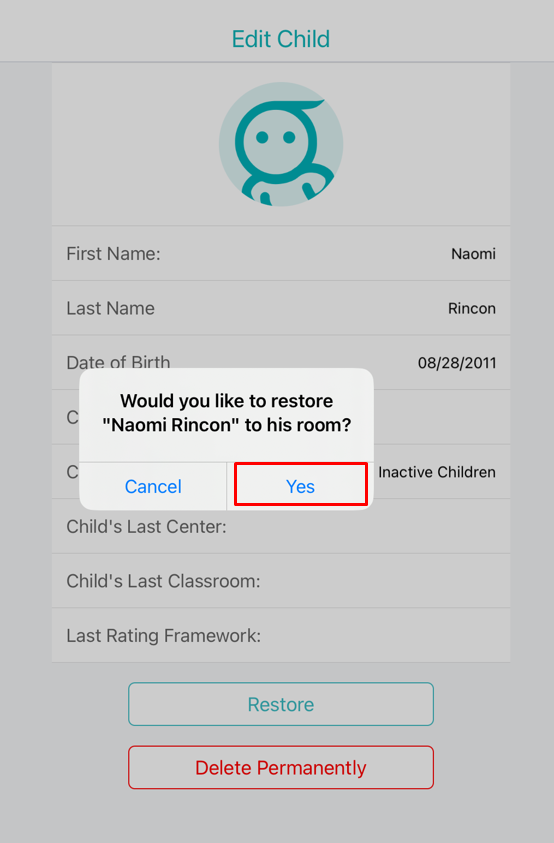
2. Select "Restore" and then select "Yes" to restore the child.
For further assistance, you can contact our Learning Genie Helpdesk.
help@learning-genie.com
760-576-4822