How do I unlock a child's DRDP assessment record?
If a child's DRDP assessment has already been rated and locked, an administrator can unlock the child's record to allow further edits.
Important: Both teachers and administrators can lock a child's assessment record, but only administrators can unlock a locked record.
There may be a backend synchronization delay of approximately two hours after an assessment is locked before it becomes available for unlocking.
Step-by-Step: How to Unlock a DRDP Assessment
Log in to the Learning Genie web portal.
Click your avatar in the top-right corner, then select "Admin Settings".
In the menu on the lower left-hand side, click "Locked Rating".
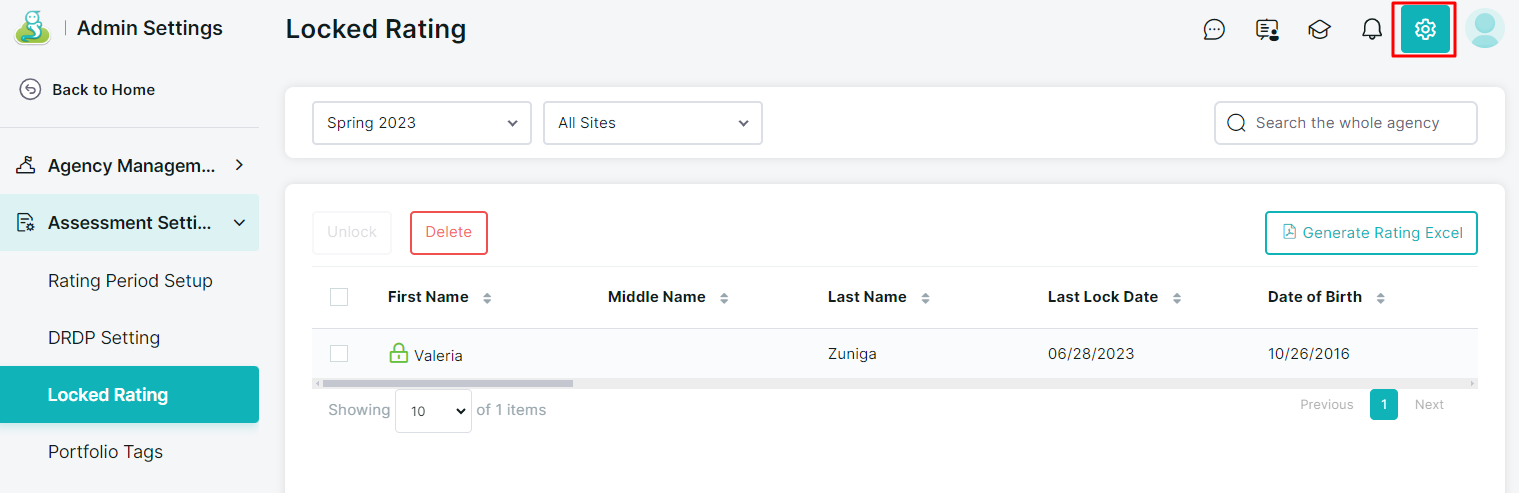
4. Find the child you want to unlock.
Use the checkbox next to their name to select them.
5. Click the "Unlock" button.

How to Confirm That the Assessment Was Successfully Unlocked
You can see the red unlocked padlock in the Manage Children section under Admin Settings. This helps confirm at a glance which children’s records are currently unlocked.
The icon indicates the record's status:
🟢 Green padlock: The child's record is locked.
🔴 Red padlock: The child's record is unlocked and can be edited.
Once unlocked, the child's assessment record can be accessed for additional edits.
Important Reminders
Only administrators have permission to unlock a child's assessment record.
If the assessment was recently locked, allow approximately two hours for backend synchronization before attempting to unlock it.
Once an administrator successfully unlocks the record, it can be locked again immediately if needed.
Need Help?
If you run into issues or have questions, the Learning Genie Support Team is here for you!
Email: help@learning-genie.com
Phone: 760-576-4822