Private Photo Filter for Student Profiles
Overview
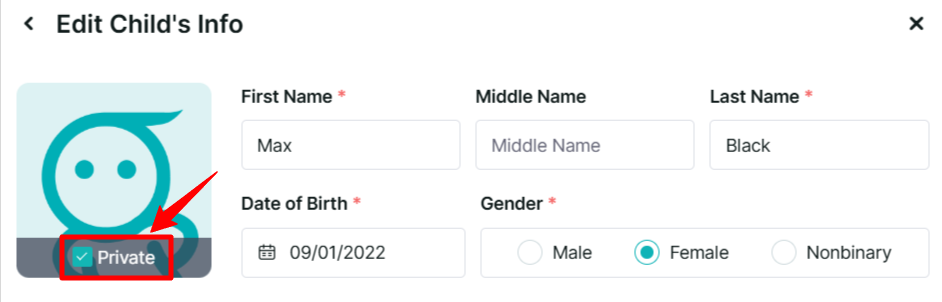
The Private checkbox on a student’s profile photo is used to identify children who do not have photo permission.
When enabled, the Private setting helps ensure that photos attached to posts involving multiple children are handled according to the child’s photo-permission status.
Important: Checking Private does not automatically hide or remove the student’s profile photo from the classroom roster or other staff-facing areas.
What Does the Private Checkbox Do?
The Private checkbox controls how photos attached to posts are handled when multiple children are tagged in the same post.
It applies to photos shared through:
Daily Reports
Parent Engagement posts
Portfolio observations when synced to Parent Engagement
When a post includes multiple children and at least one child is marked Private, Learning Genie applies privacy rules to how the photo is shared with each family.
Does Private Prevent the Profile Photo from Being Shared?
No.
The Private setting does not automatically remove or hide the child’s profile photo from the classroom roster or other areas visible to staff and families.
Instead, it primarily controls the handling of photos attached to posts when multiple children are included.
Staff can still view and edit the student's full profile and profile photo. The Private setting serves as a visible reminder that the child does not have photo permission.
How Does Photo Privacy Work?
When Multiple Children Are Tagged
If a teacher adds a photo to a post for multiple students, and at least one student is marked Private:
The Private student's family receives a text-only version of the post without the photo.
Other students' families may receive a privacy-filtered/masked version of the photo.
The teacher is prompted to review the photo before sending.
Teacher Mobile App
On the mobile app, teachers receive a privacy warning and can select Apply Privacy Filter to mask the applicable portion of the photo before sending. (Learn more here)
Web
On the web, teachers receive a confirmation asking them to verify the photo before saving or sending.
There is no one-click Apply Privacy Filter button on the web like there is on mobile.
What If Only One Child Is Tagged?
If a post contains only one child and that child is marked Private, the child can still receive the photo on that individual post.
The Private setting is primarily designed to control photo sharing when multiple children are included in the same post.
Where Will Staff See the Private Setting?
Learning Genie provides several reminders to help staff identify children without photo permission.
Staff may see:
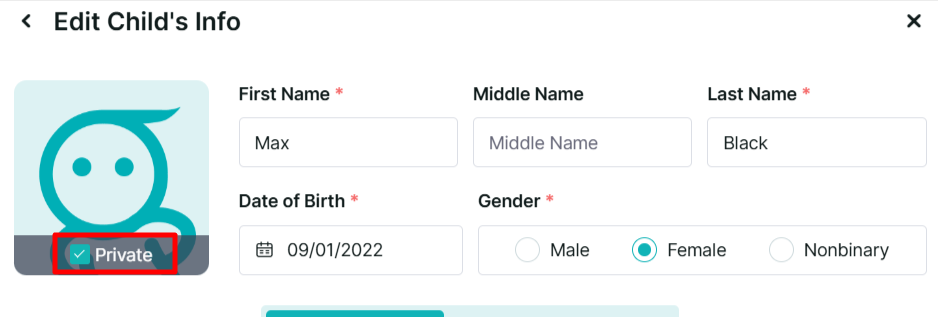
A Private label next to the checkbox over the profile photo in Edit Students
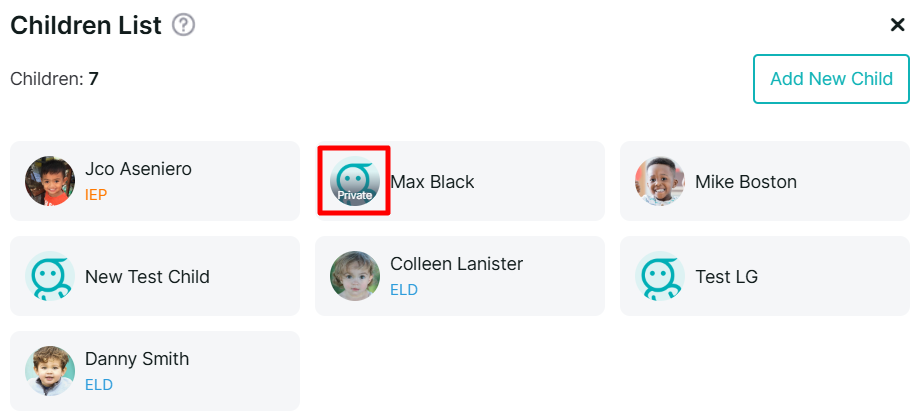
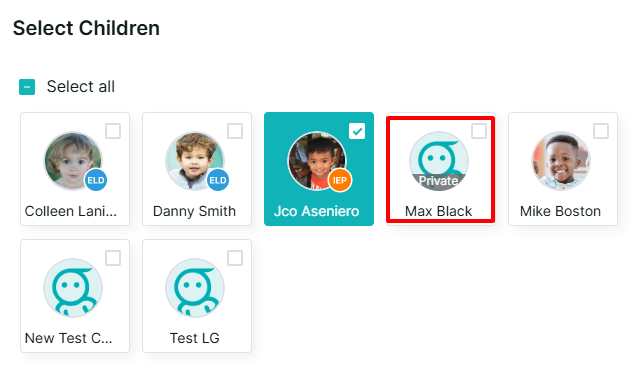
A Private badge on the child's avatar in class lists and child-selection screens
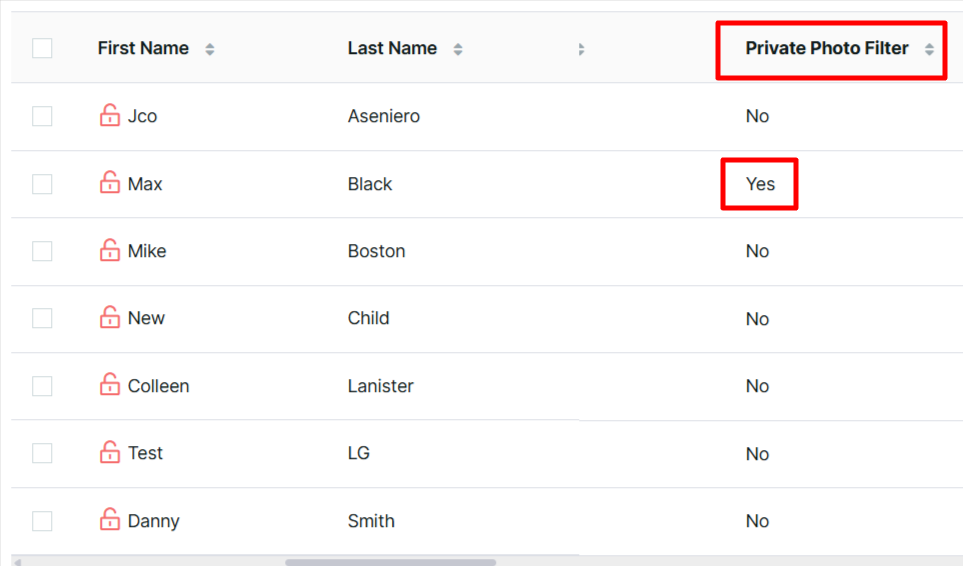
A Private Photo Filter column showing Yes/No in Manage Children / Edit Students
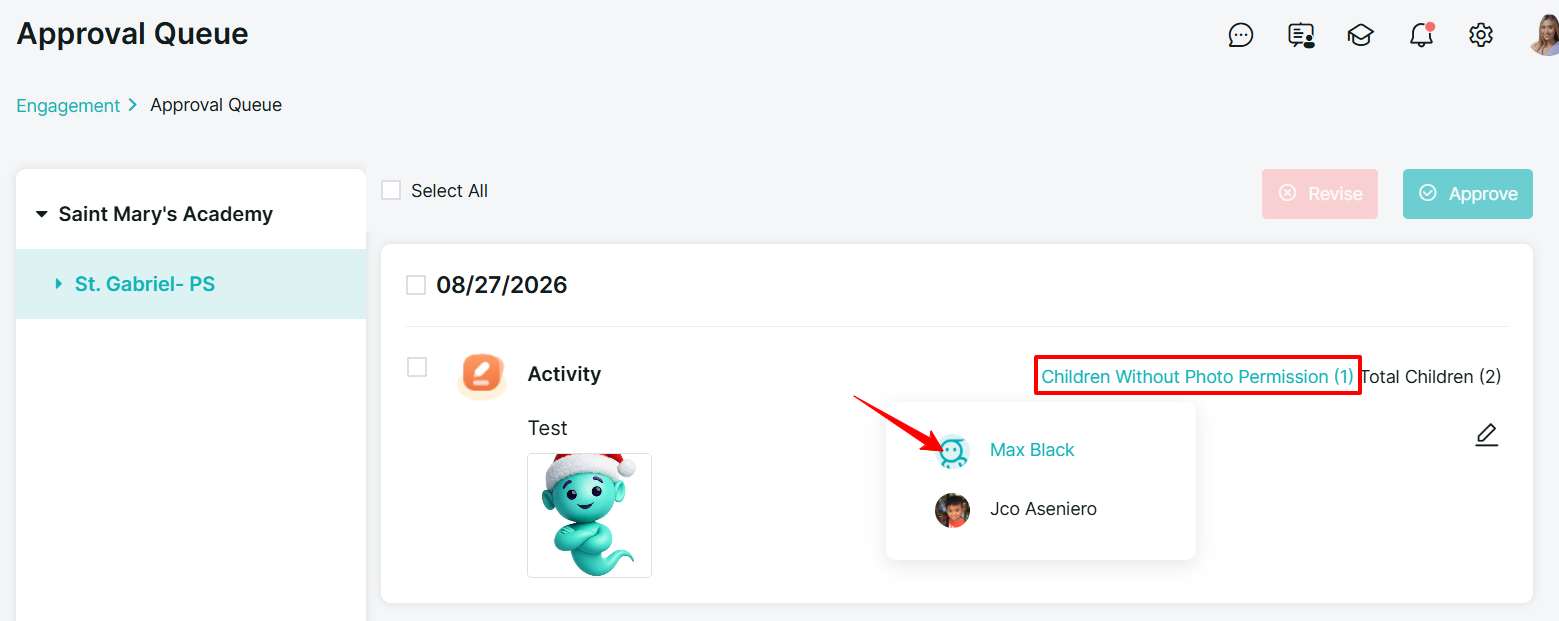
In the Approval Queue, when enabled, a note such as Children Without Photo Permission (X), with the affected children's names highlighted
How Does Private Affect Different Features?
Daily Reports
When a photo is posted to multiple children and at least one child is marked Private, the post follows the privacy rules described above.
The Private child's family receives the post without the photo, while other families may receive a privacy-filtered version.
Portfolio Observations
Photos remain attached to the original Portfolio observation.
If the observation is synced to Parent Engagement, the photo privacy rules apply when the observation is shared with families.
Parent Engagement Posts
The same privacy rules apply when a post contains a photo and multiple children are tagged.
Staff Access
The Private setting does not restrict staff access.
Staff can still view and edit the student's profile and profile photo. The setting is a reminder to staff that the child does not have photo permission.
Examples
Example 1: Multiple Children in One Post
A teacher posts a nap photo and tags Emma and Liam.
Emma is marked Private.
Liam is not marked Private.
Result:
Emma's family receives the post without the photo.
Liam's family receives the photo, which may be privacy-filtered depending on the posting workflow.
Example 2: One Private Child in an Individual Post
A teacher posts a photo and tags Emma only.
Emma is marked Private.
Result:
Emma's family can still receive the photo because she is the only child included in the post.
Example 3: Portfolio Observation With Multiple Children
A teacher saves a Portfolio observation with a photo for three children.
One of the three children is marked Private.
The observation is synced to Parent Engagement.
Result:
The teacher receives a privacy warning before the observation is shared. The Private child's shared version is delivered without the photo, while the other families may receive a privacy-filtered version of the image.
Best Practice for Teachers
Before sharing a photo that includes multiple children:
Check whether any of the tagged children have the Private badge.
Review the privacy warning when prompted.
On mobile, use Apply Privacy Filter when appropriate.
On web, carefully review the confirmation before saving or sending.
Remember that marking a student as Private does not hide their profile photo from classroom or staff-facing areas.
The Private setting should be treated as a photo-permission indicator and a safeguard for photo sharing—not as a setting that completely hides the student's profile photo.