How to Create and Assign Performance-Based Assessments Using the PBA Builder
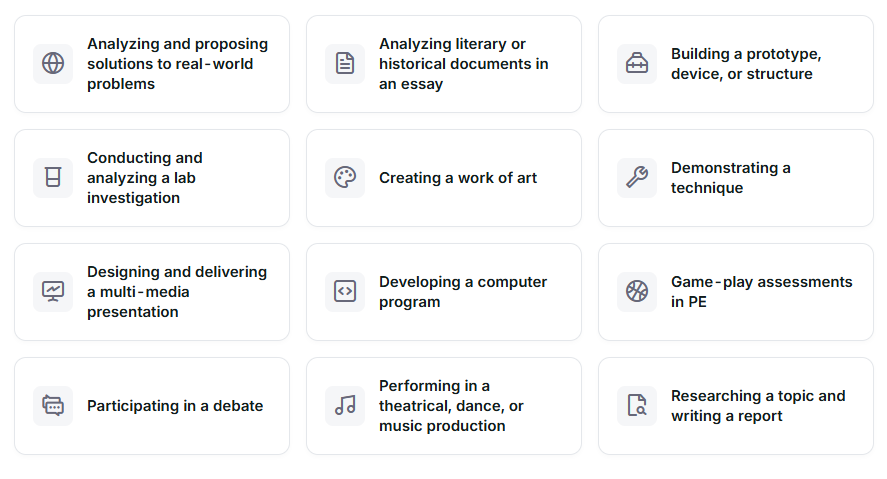
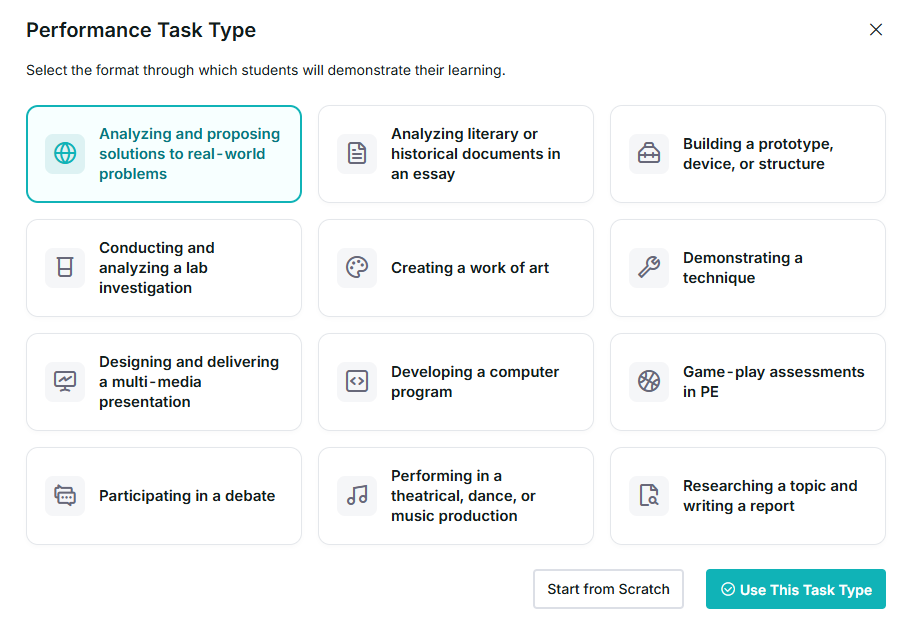
Curriculum Genie's PBA Builder now supports 12 performance task types — from quick single-session tasks to complex multi-day projects — giving teachers more flexibility in designing authentic assessments aligned to academic standards and Portrait of a Graduate (PoG) traits.
Step 1: Create an Assessment
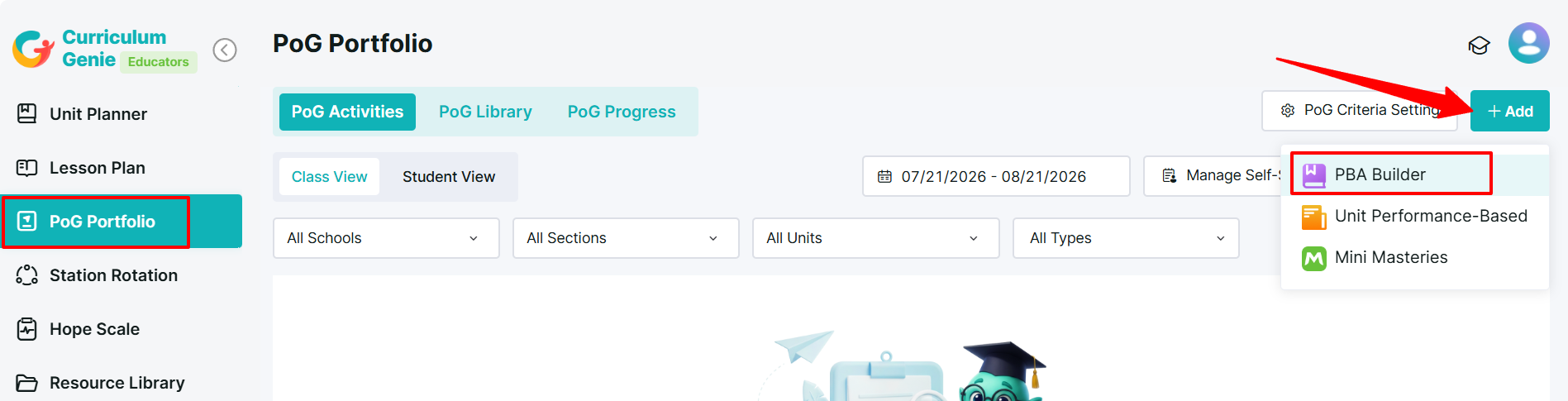
Go to the PBA Builder in Curriculum Genie.
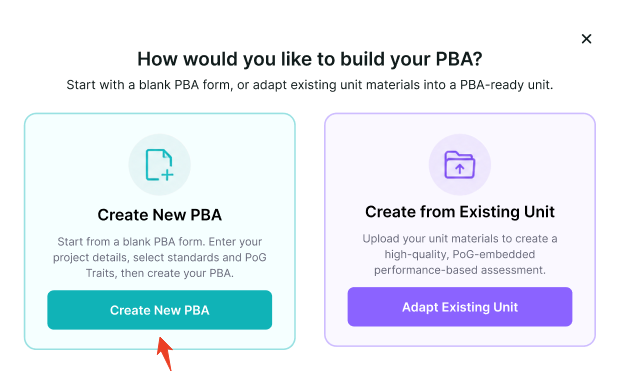
Click Create New PBA.
Select the task type (format) through which students will demonstrate their learning. You can choose from 12 available performance task types.
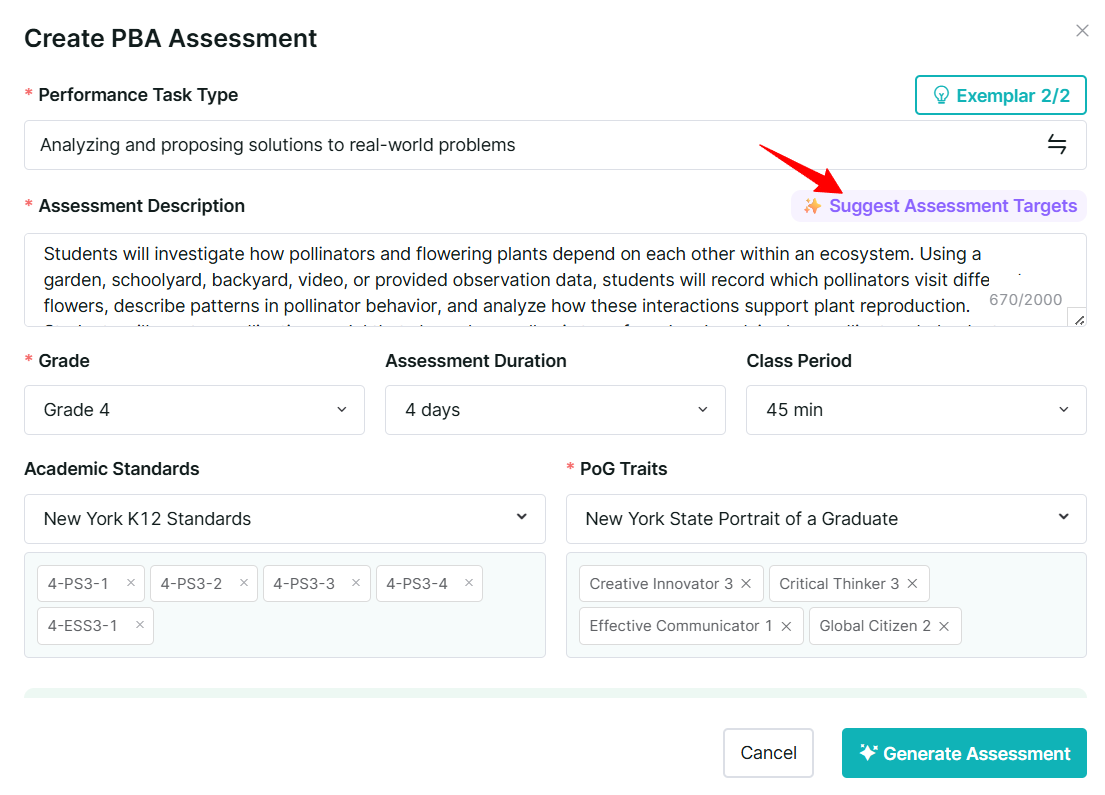
Step 2: Suggest Assessment Targets
Once you have selected your task type, grade, duration, and entered a description:
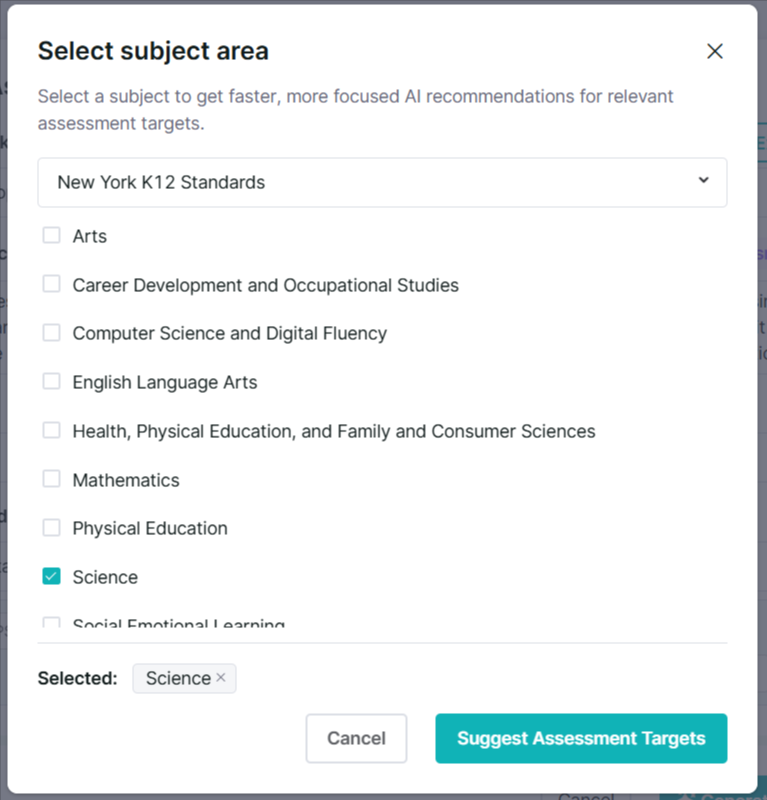
Click "Suggest Assessment Targets".
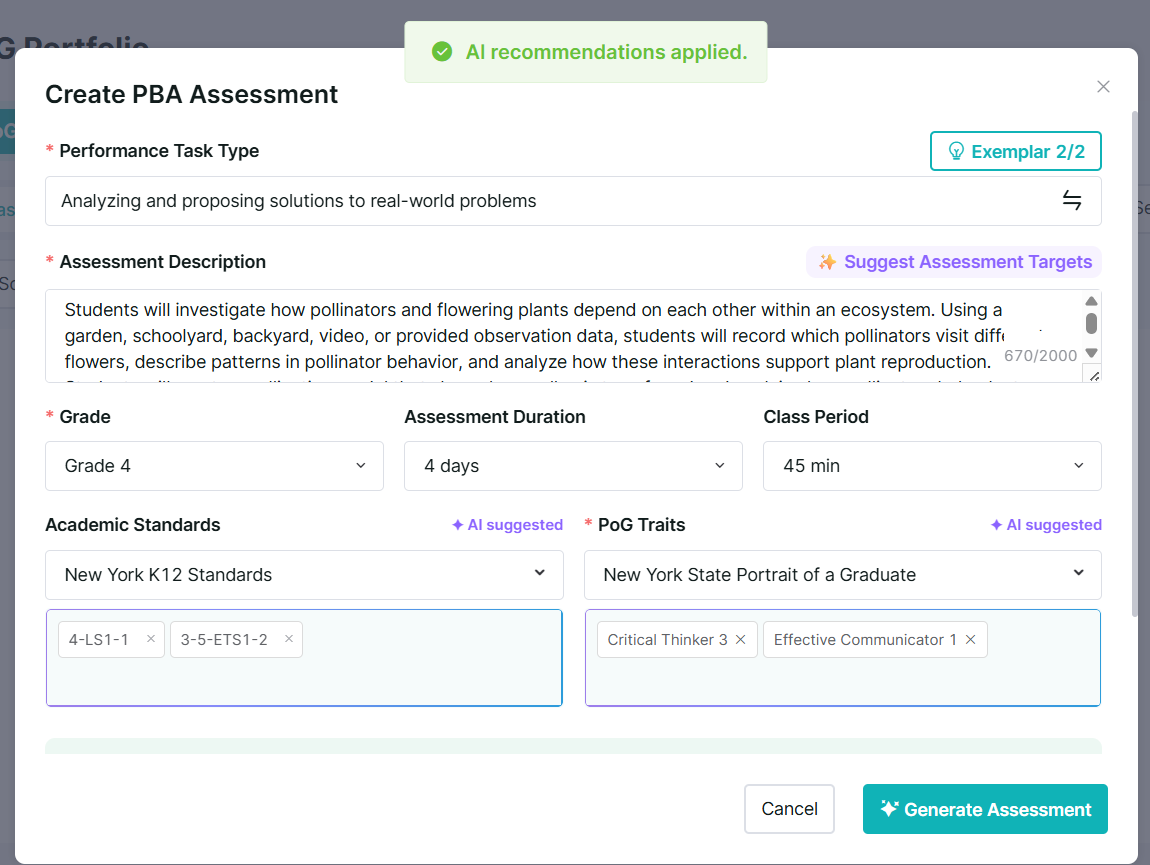
The system automatically recommends aligned academic standards and PoG traits based on your inputs.
Review the suggestions and accept or adjust them as needed.
Tip: You can also manually select your own targets. See Step 3 for details on how the system validates manual selections.
Step 3: Compatibility & Feasibility Check
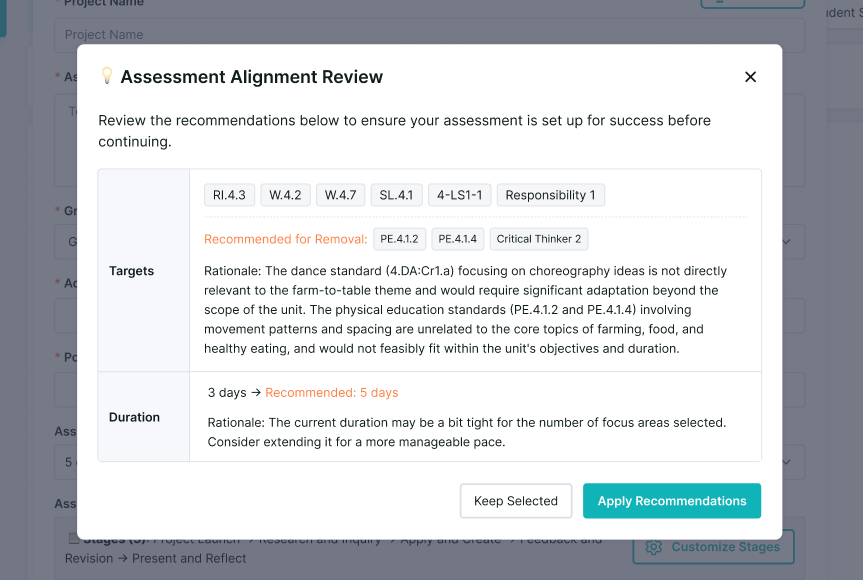
Before generation begins, the system automatically validates your selected targets:
It checks that every academic standard and PoG trait can realistically be evidenced within the assessment given the task type and duration.
It confirms the timeline is sufficient for the selected targets.
If any issues are detected, the system will prompt you to adjust your targets or timeline before proceeding.
Step 4: Generate Performance Tasks
Once your targets pass the compatibility check, click Generate.
The system creates performance tasks, each linked to specific academic standards and PoG traits.
Every task has a clear purpose and is designed to produce observable evidence of student learning.
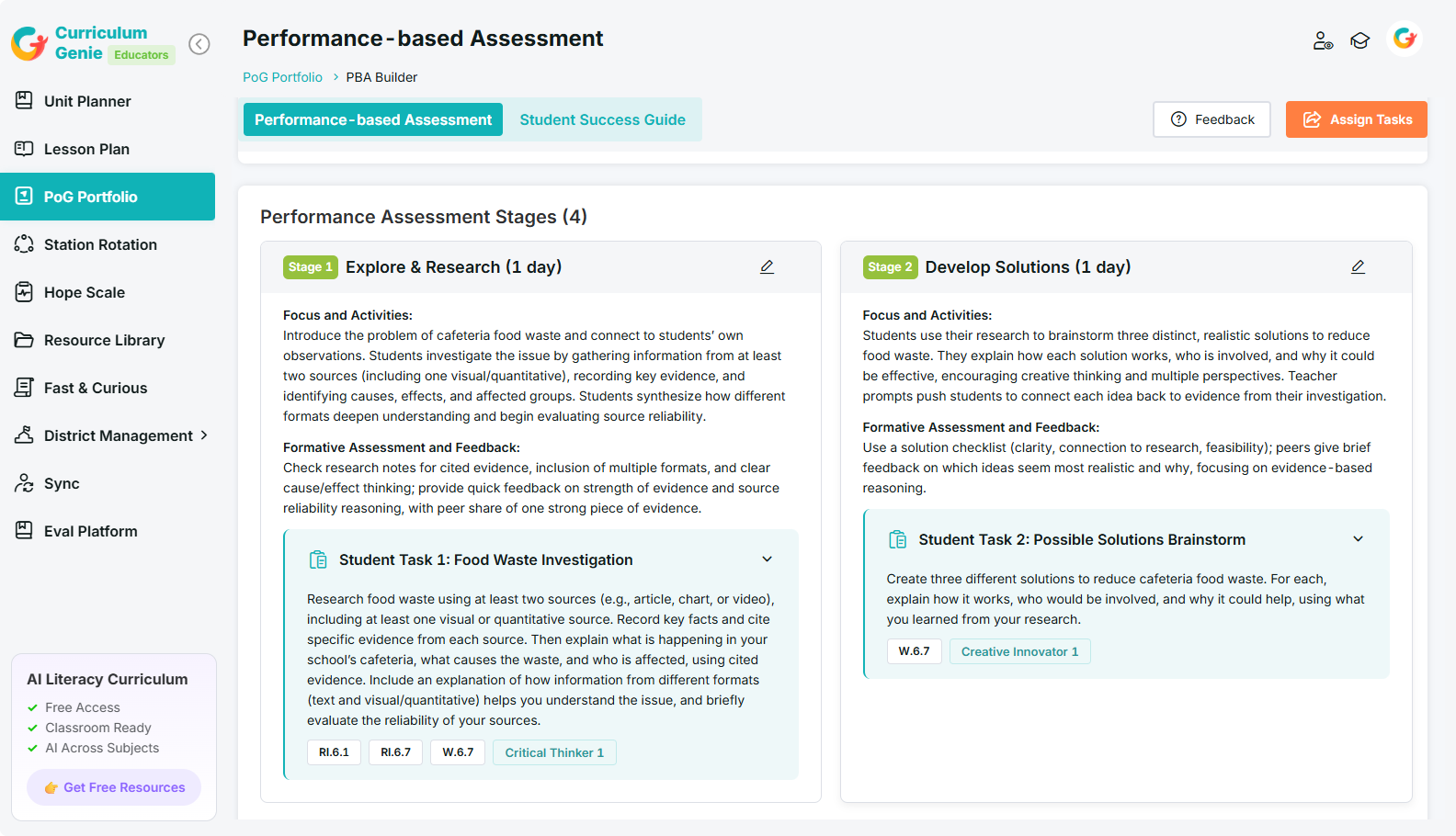
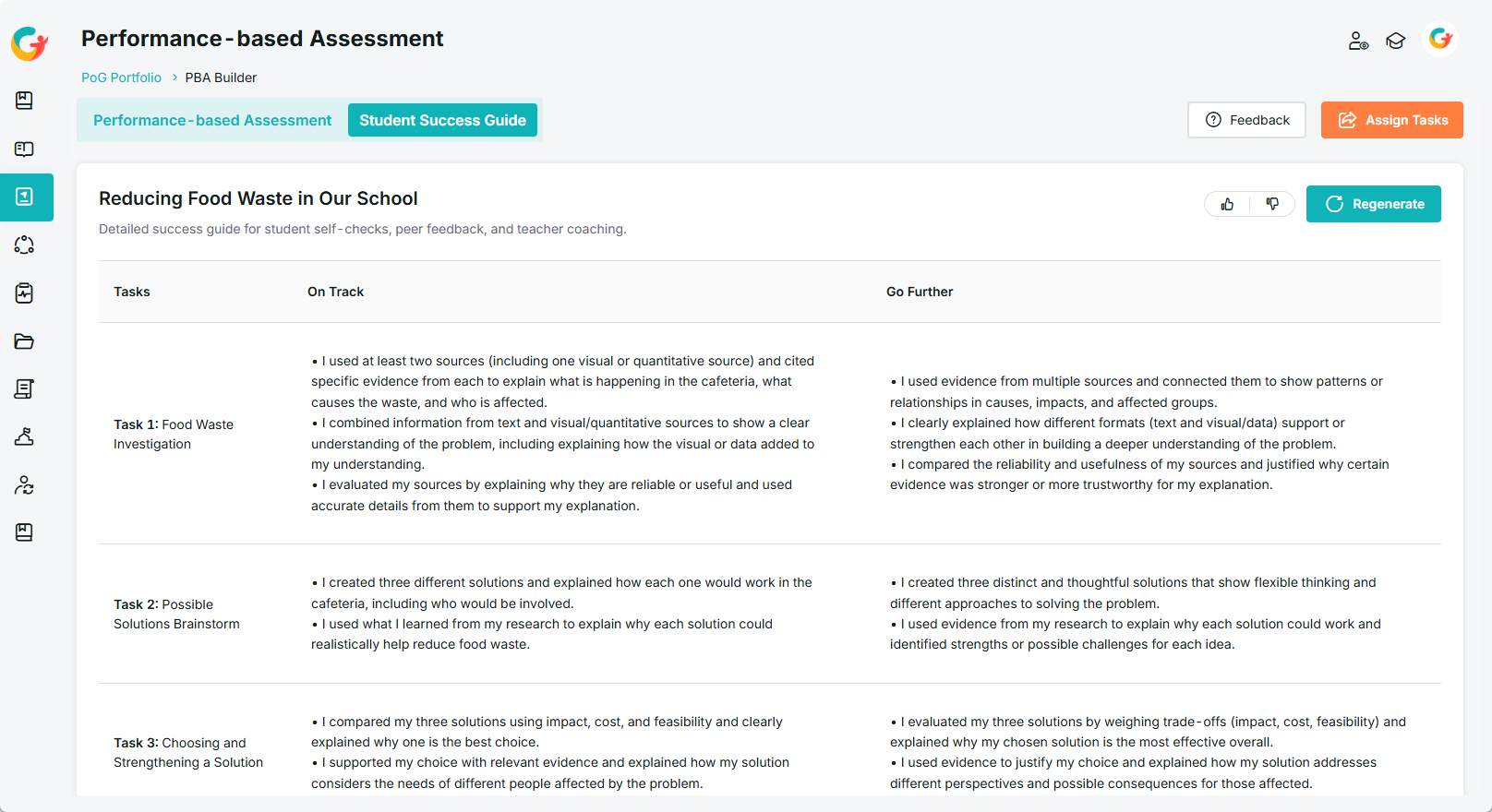
Step 5: Review the Success Guide
After generation, a Success Guide is created for each task:
Student-facing success criteria are generated at two levels, giving students, peers, and teachers a shared, concrete picture of what quality work looks like.
Review and edit the criteria as needed before assigning.
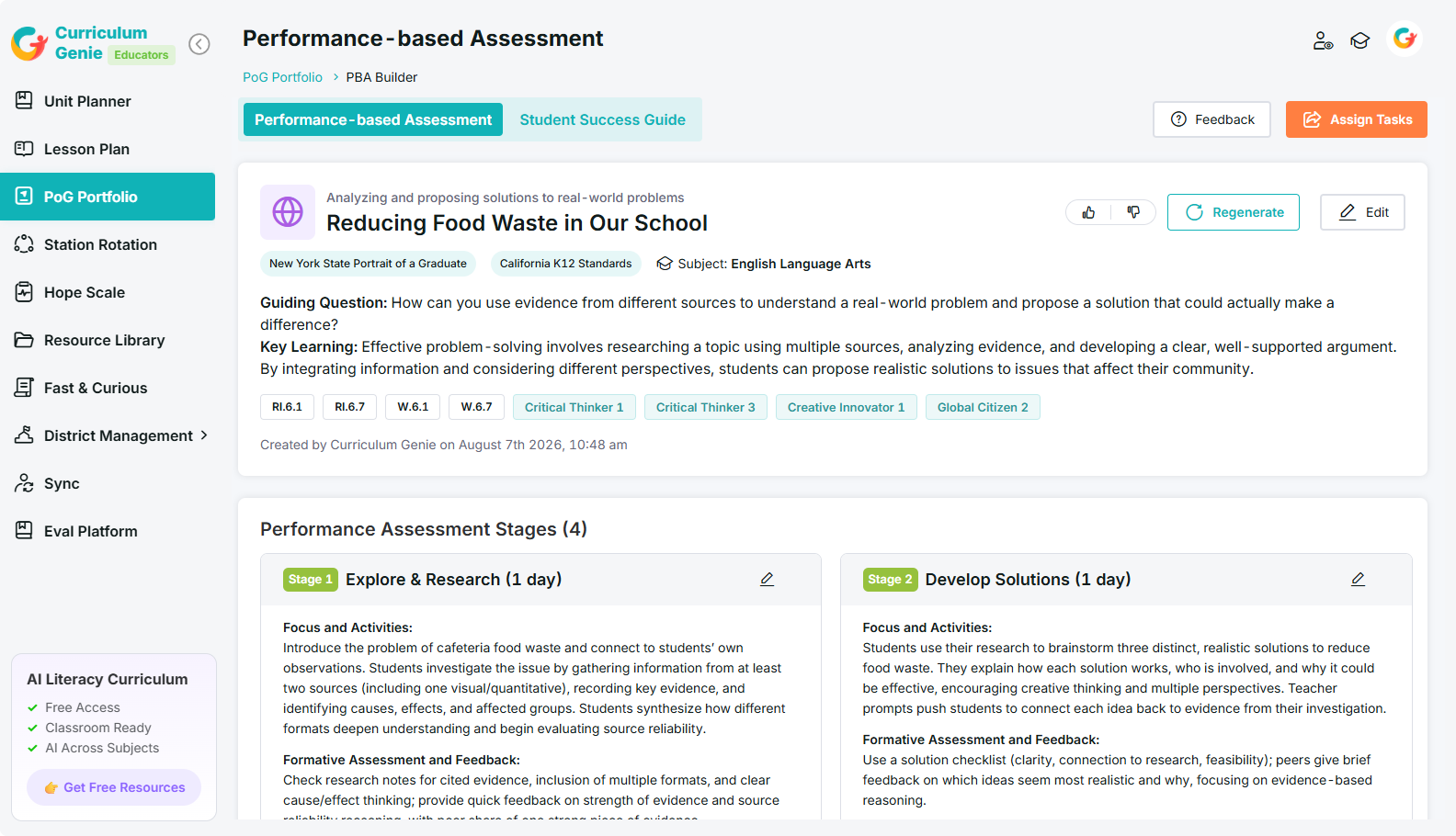
Step 6: Review the Stage-by-Stage Plan (Multi-Day Assessments Only)
For multi-day assessments, tasks are automatically organized into a coherent stage-by-stage plan:
Each stage includes a clear instructional focus, a formative checkpoint, and a duration allocation.
Review each stage and adjust as needed.
Note: Single-session assessments skip this step.
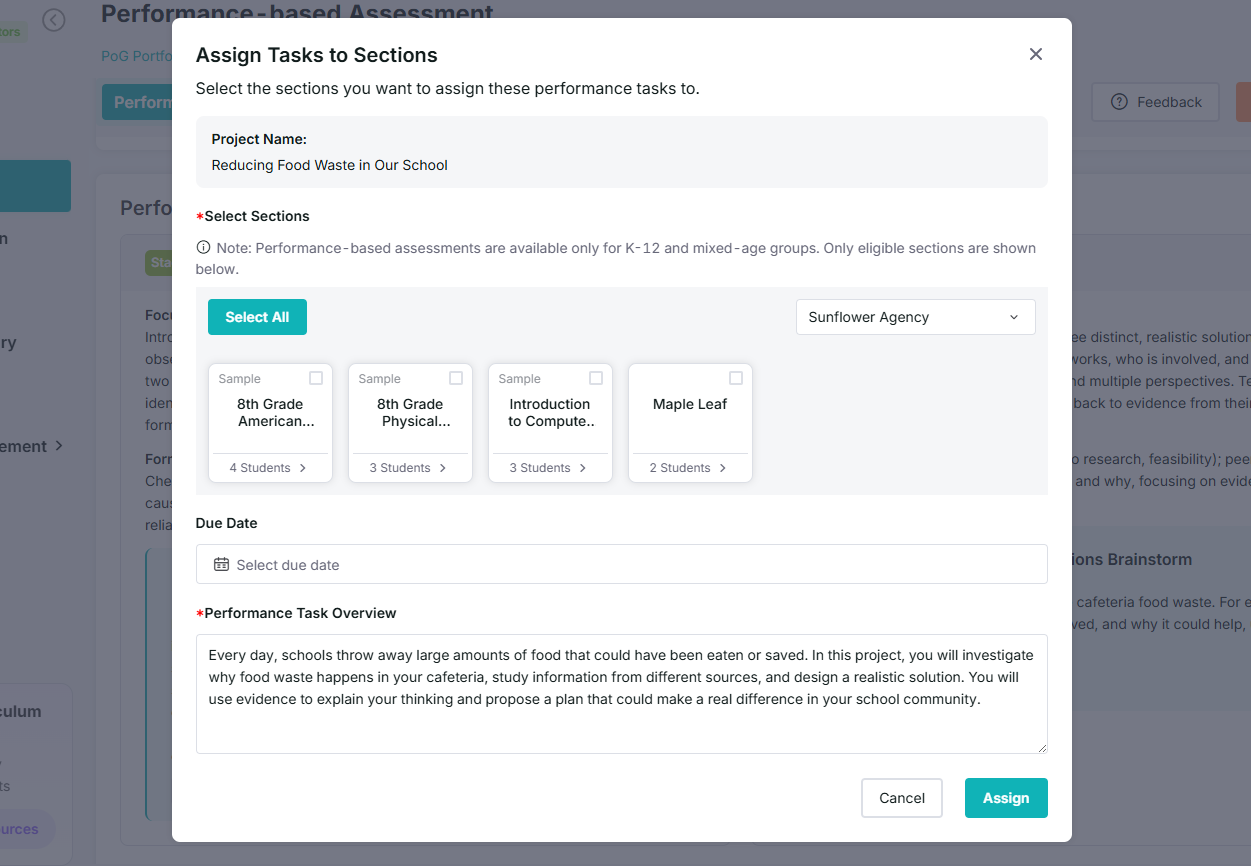
Step 7: Assign Tasks to Students
When you are satisfied with the assessment, click Assign.
Distribute the assessment to your class with one click.
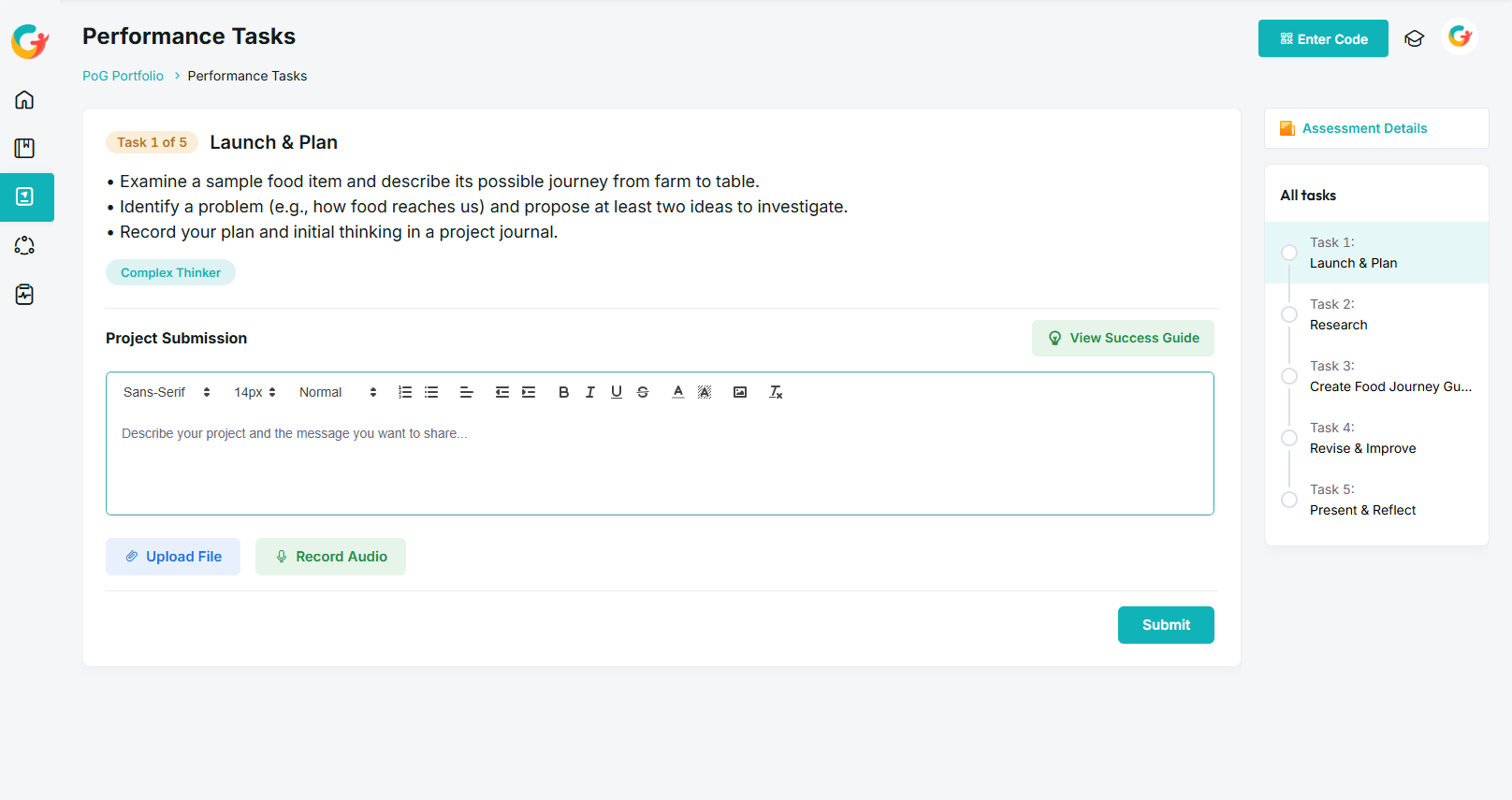
Step 8: Students Submit Evidence
Students submit their work in multiple formats, including:
Written responses
Photos
Audio recordings
And more
This multimodal submission approach captures what students can actually do.
Step 9: AI Scoring
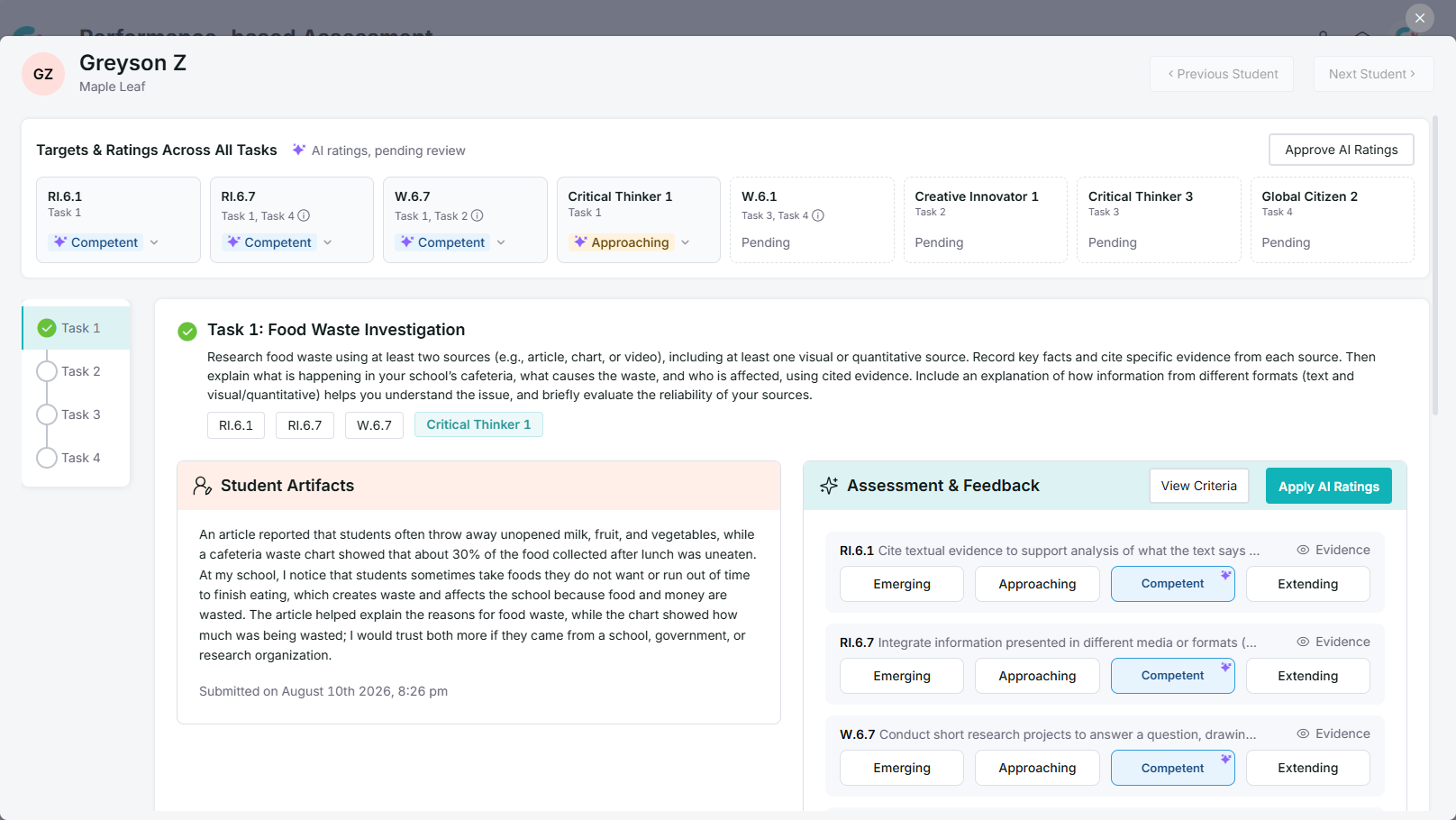
Once students submit, AI scoring reviews each submission:
Each submission is evaluated against the assigned academic standards and PoG traits.
The system produces a rating and an evidence-based rationale for every target.
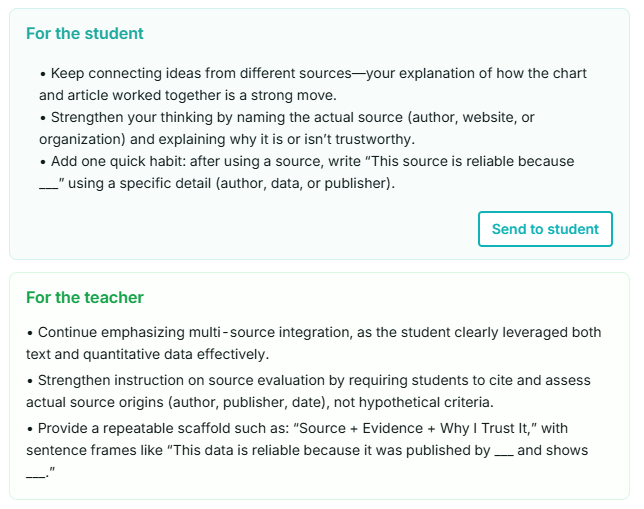
Actionable recommendations are generated for both students and teachers.
Need Help?
If you run into issues or have questions, the Learning Genie Support Team is here for you!
Email: help@learning-genie.com
Phone: +1 (760) 576-4822