Note: If your district has developed its own Portrait of a Graduate (PoG) framework — separate from any State-level PoG — this guide will walk you through how to configure it in your admin account.
Your district's custom PoG framework serves as the foundation for generating PoG-aligned Unit Planners, Lesson Plans, Performance-based Assessments, and Mini Masteries, including setting up attributes, actionable expectations, and rubrics.
If these attributes are not configured by the Admin, teachers will still be able to generate PoG-aligned Lesson and Unit Plans, but will not be able to select their specific district's PoG framework.
A. Accessing the Configuration Dashboard
To begin setting up your district's framework:
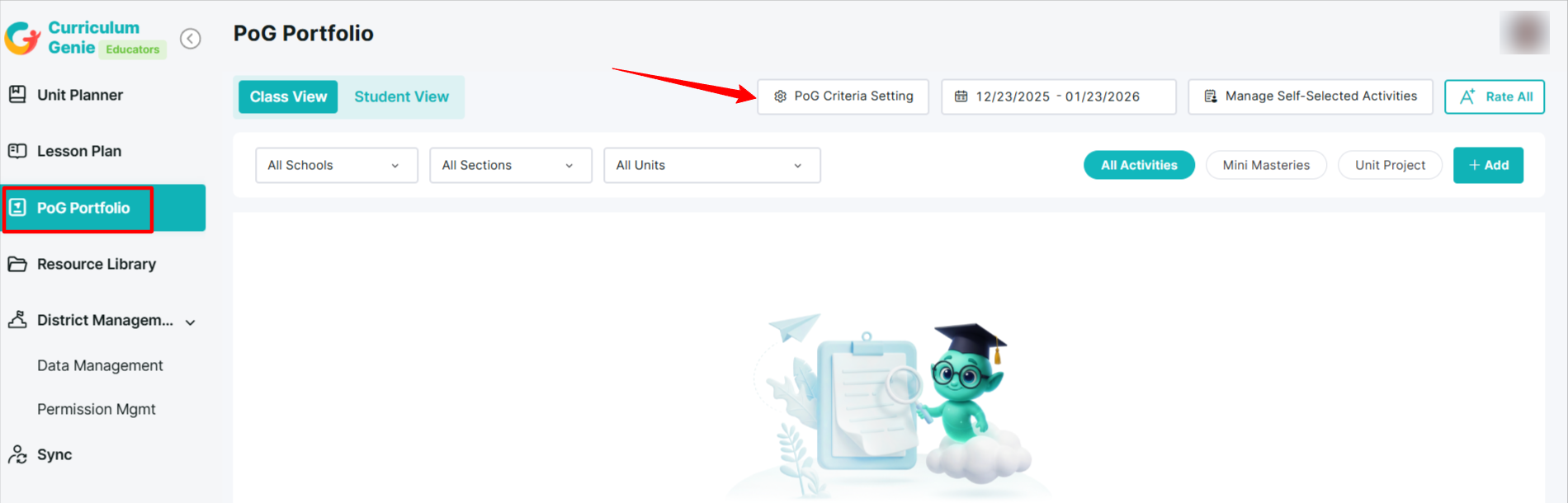
2. Navigate to PoG Portfolio in the left sidebar.
3. Locate the PoG Critera Setting button to begin the setup.
Note: If you are a new user enabling the PoG Assessment feature, you may see a "New Feature" popup prompting you to set up or upload PoG attributes immediately.
B. Options for Setup
You have two methods to establish your PoG framework, depending on your district's current resources:
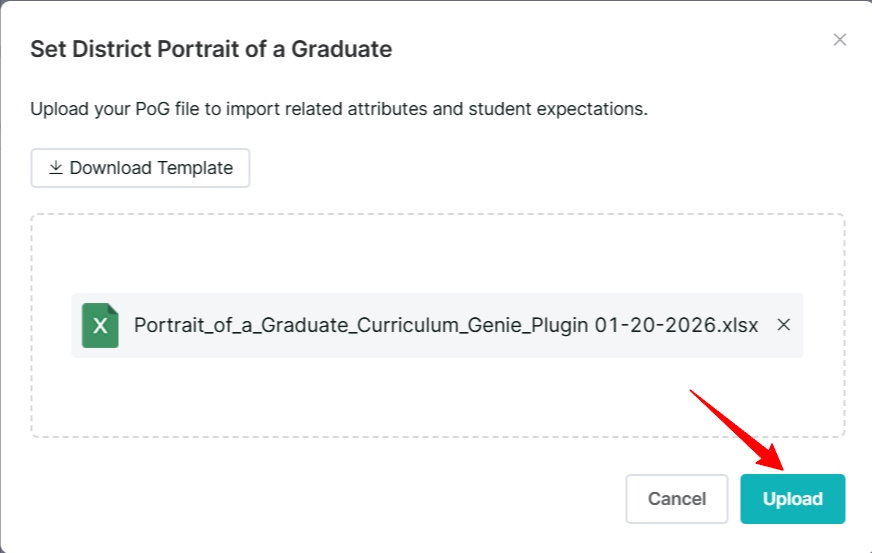
• Option 1: Upload via Excel Template If you have a custom framework, you can import it using a system-provided file.
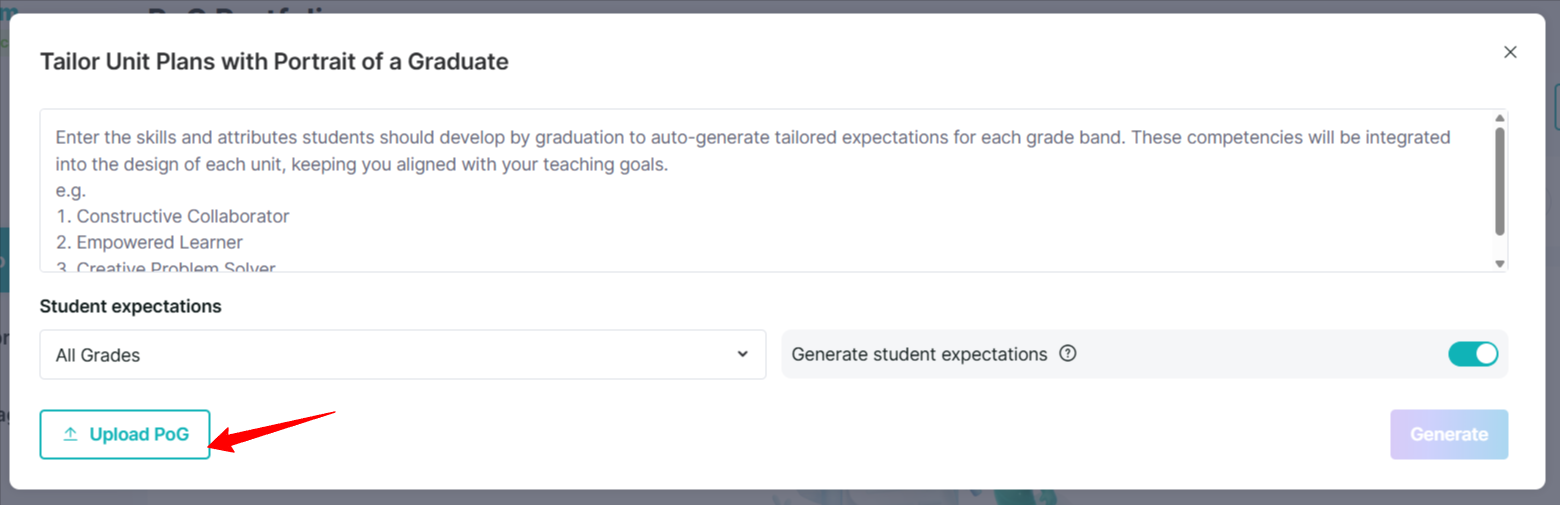
1. Select Upload PoG.
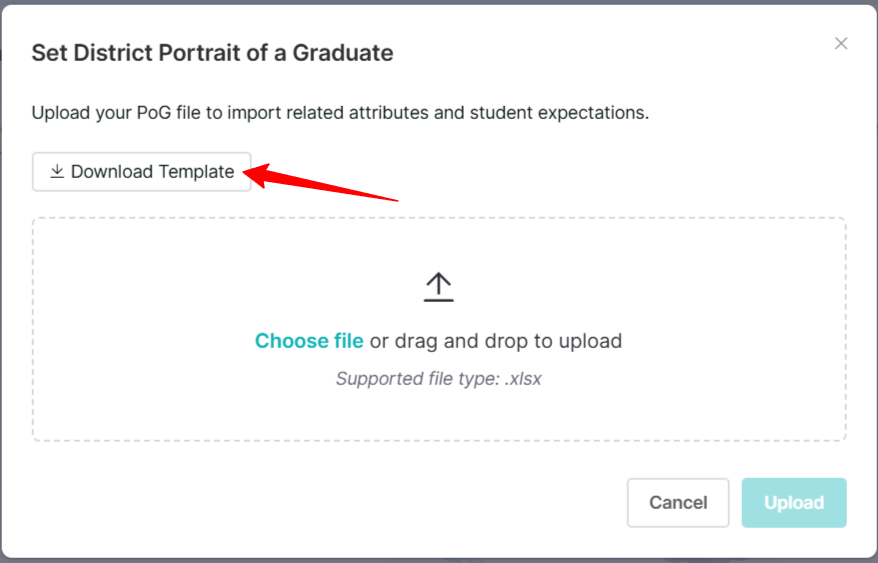
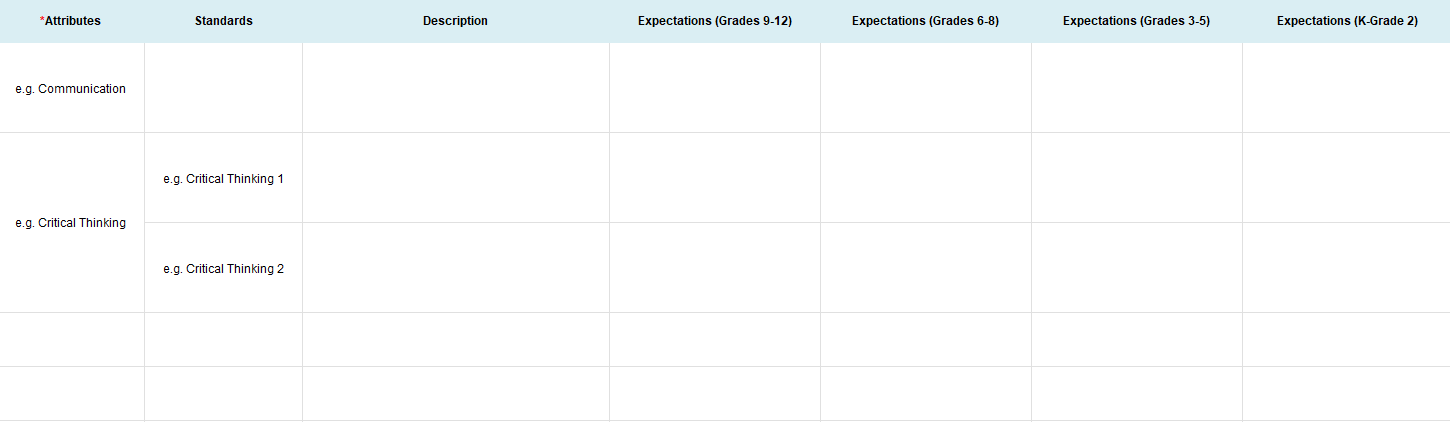
2. Download the provided .xlsx template.
3. Complete the template with your district's data and upload it back into the system.
4. The system will import the document and generate actionable expectations and rubrics for different grade bands.
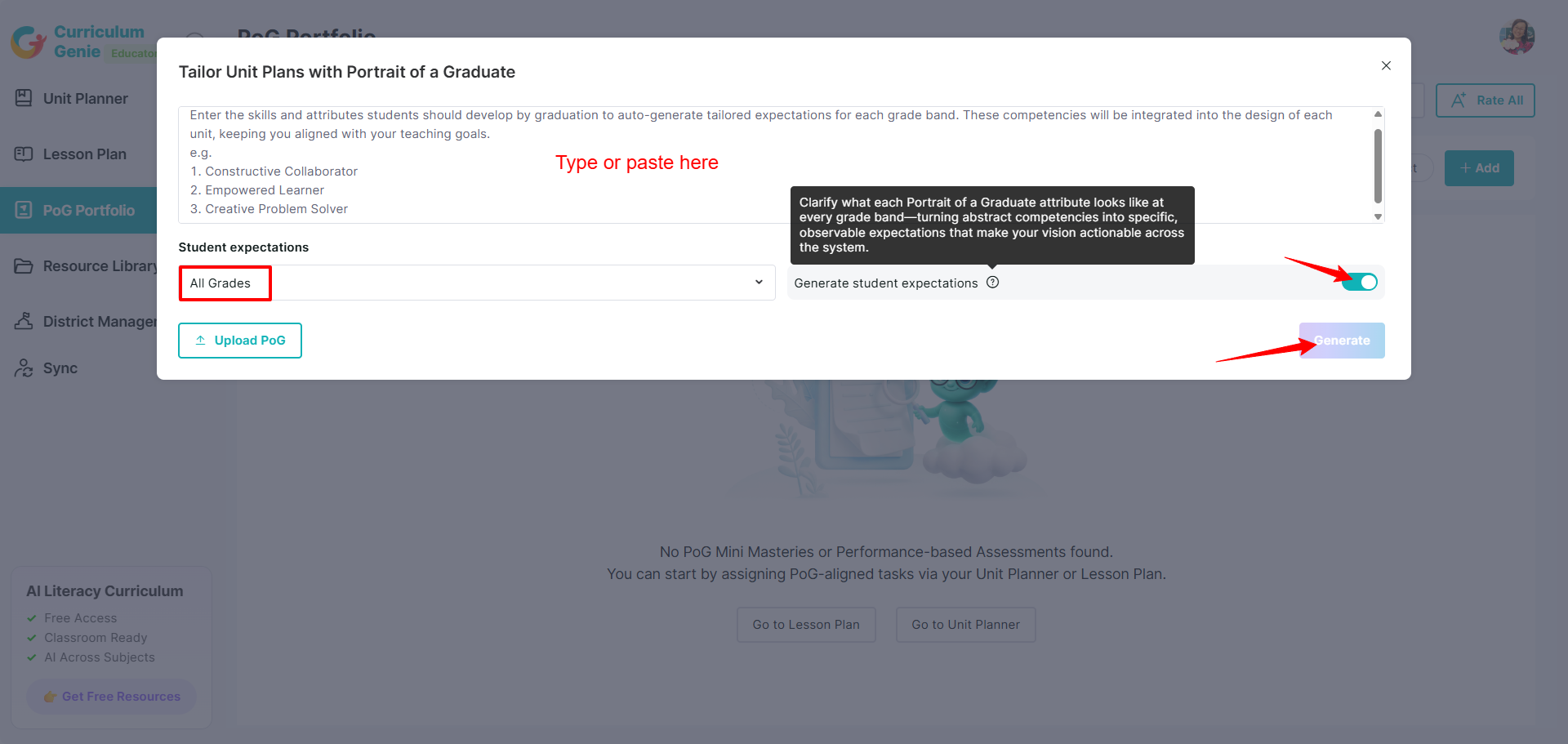
• Option 2: Paste an Existing Framework You can instantly generate expectations by copying text directly from your district documents.
1. Copy your district’s PoG framework text.
2. Paste it into the input box.
3. The system will instantly generate "Actionable Expectations" and "Competency Rubrics" for different grade bands (based on what you selected) with a single click. Just click "Generate".
3. Reviewing and Finalizing Rubrics
Once the data is imported or generated, the AI creates specific success criteria that must be reviewed and finalized to establish a unified assessment baseline.
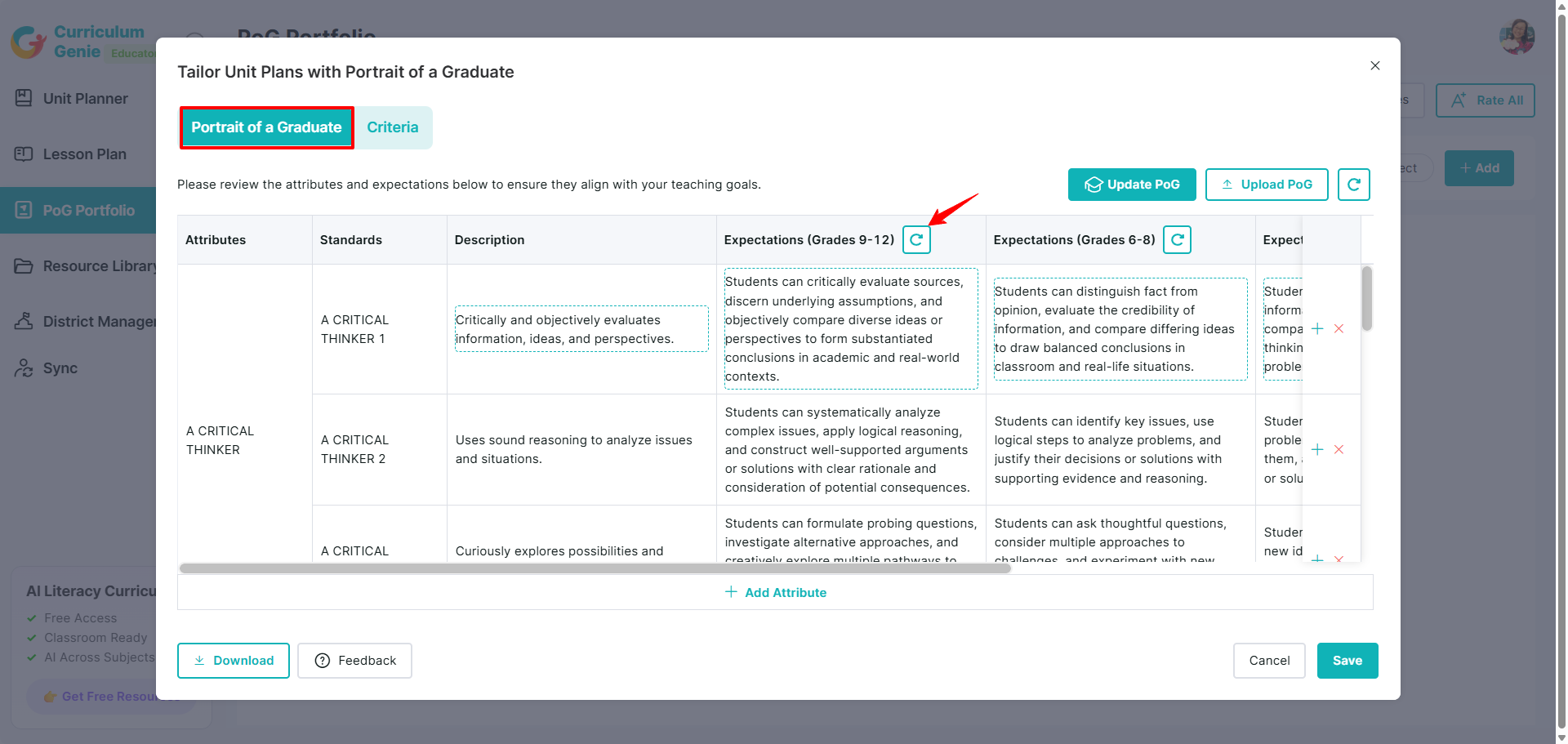
Reviewing Expectations
• Under the Portrait of a Graduate tab, review and edit actionable expectations for each Grade Band
• Smart Editing: You can click on any cell to manually edit the text or use the Regenerate button to get fresh AI suggestions.
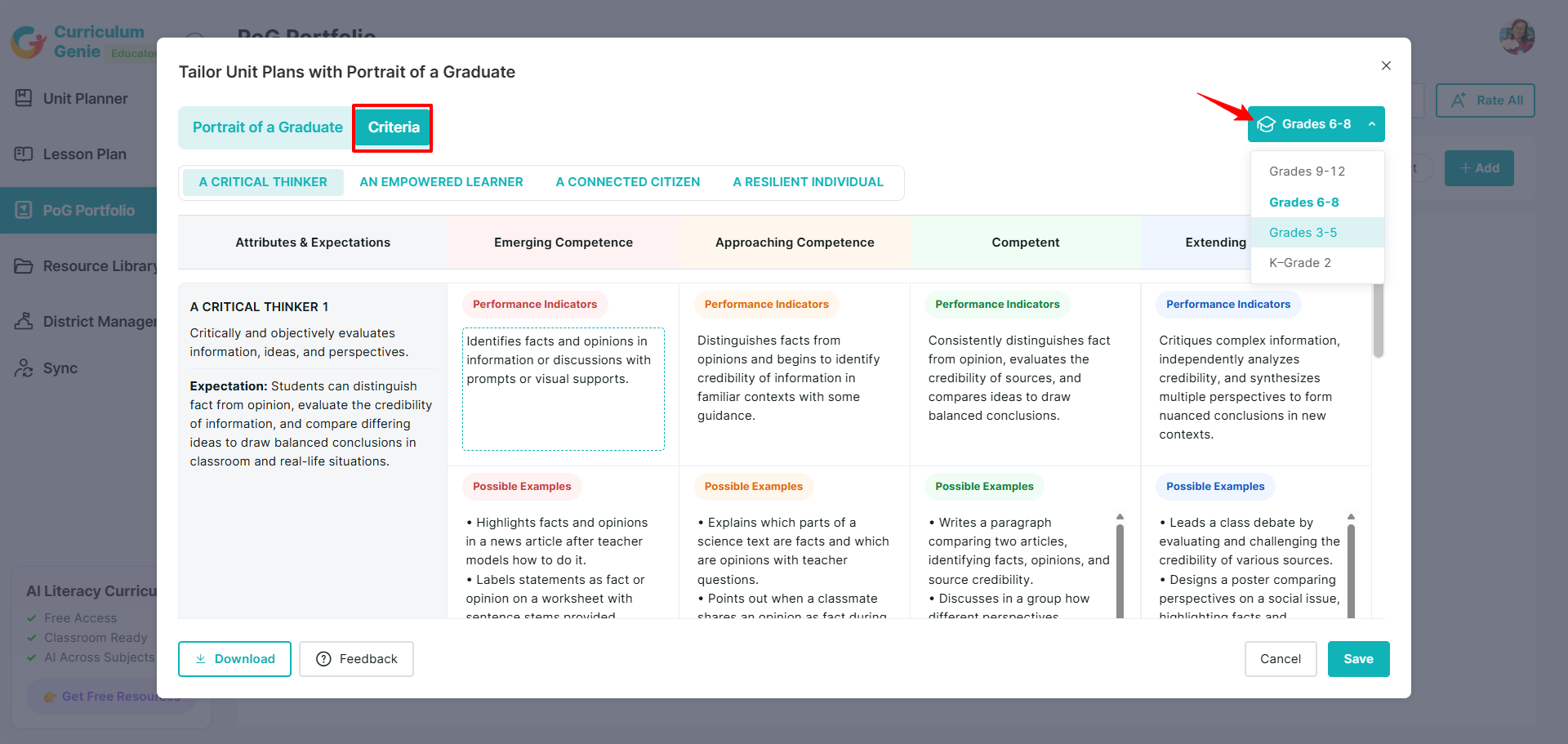
Refining Competency Rubrics
• Navigate to the Criteria tab to view the auto-generated rubrics.
• The system generates a 4-level rubric: Emerging Competence → Approaching Competence → Competent → Extending Competence.
•You can click on any cell to manually edit the text. Use the dropdown to view the rubric for the different grade bands.
Publishing
Once you have refined the rubrics to align perfectly with your district's goals, click Save. This activates the settings and allows all district educators to utilize these rubrics for AI-powered assessment.
Need Help?
If you run into issues or have questions, the Learning Genie Support Team is here for you!
Email: help@learning-genie.com
Phone: 760-576-4822