How to add DLL home-language Activity Assignments
If you are a Teacher or an Administrator, you may add a DLL home-language activity assignment by following the next steps:
1. From the Home Menu, select a classroom and Click on DLL. Alternatively, you can select "DLL Library" from the sidebar, and then select a classroom to proceed.
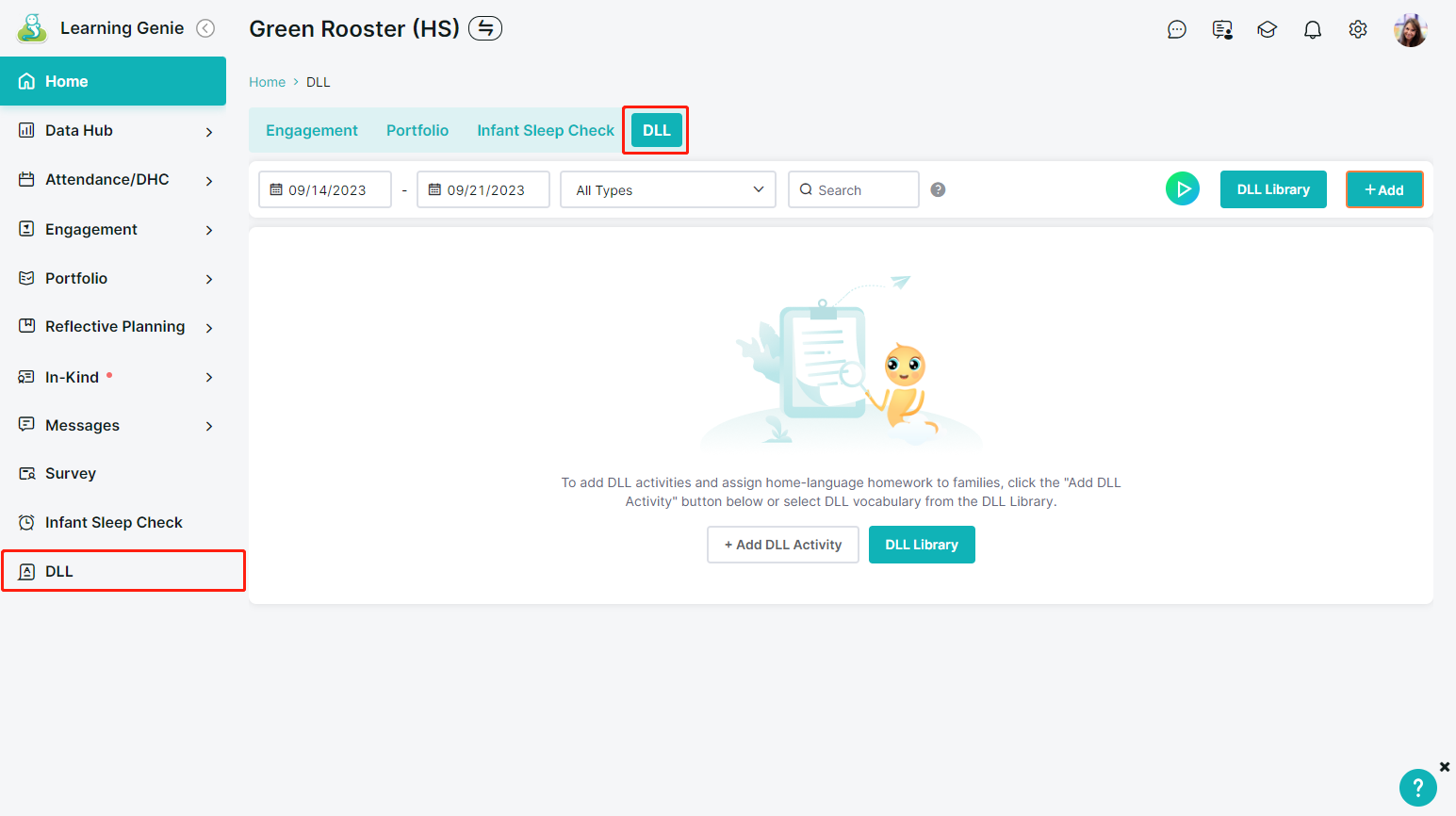
2. Click on the Plus Sign to add an activity.

Here is where you'll add the information for the activity.
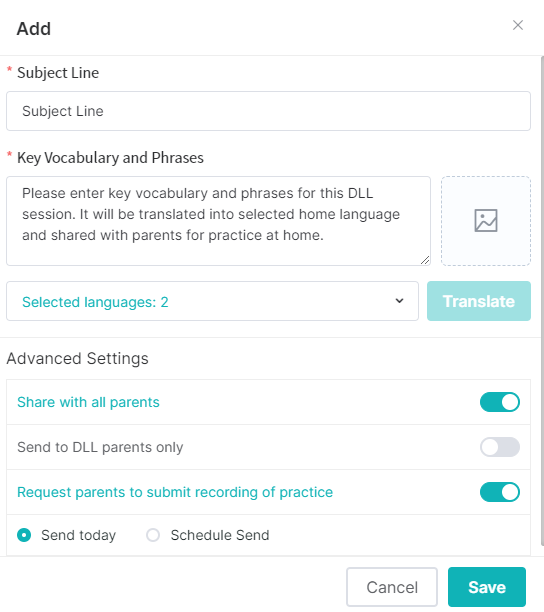
3. Type a Subject Line, it can be anything you want: by theme, by weeks, by topics, etc.

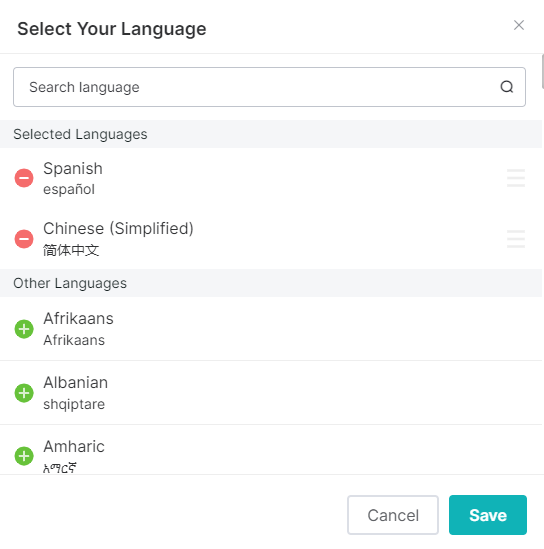
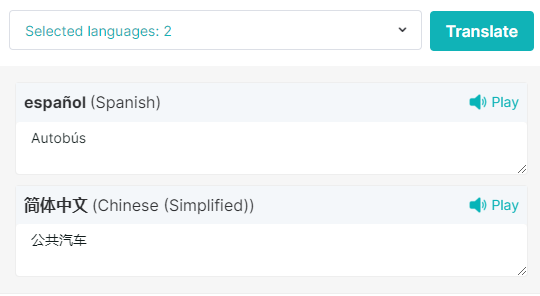
4. Click on the "Select Language" button to select the languages to translate into.

5. Add or remove the desired languages from the list, you can choose from 60+ available languages.
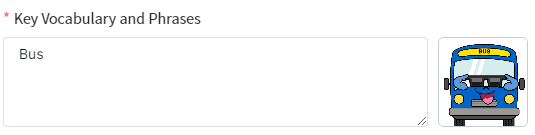
6. Add key vocabulary or a phrase. You can choose to add an image.
7. Click on the "Translate" button to see the results.
8. Choose your engagement options.
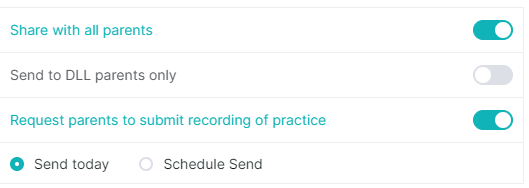
9. Select the posting date.

10. Click the "Save" button.

You should now be able to see your DLL Activity posted.

Please reach out to us if you have additional questions!
help@learning-genie.com
(760)576-4822