How to set Quiet Hours for receiving parent messages
Follow these simple steps to manage when you receive parent message notifications:
- Open the Learning Genie Educator App and tap the “Message” tab for your classroom.
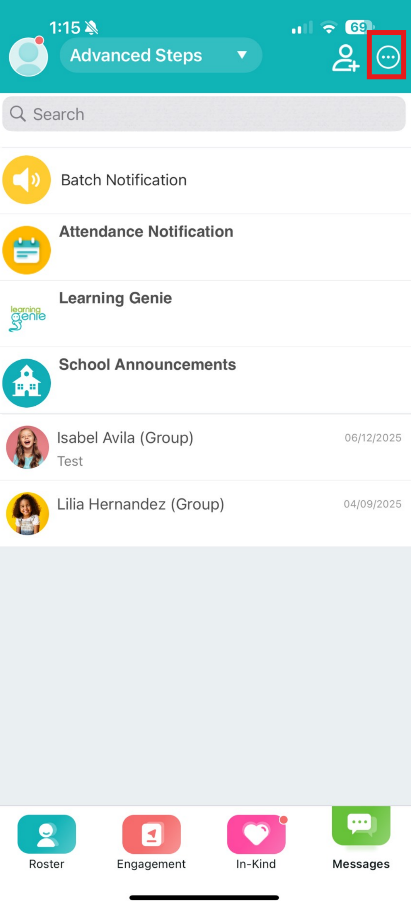
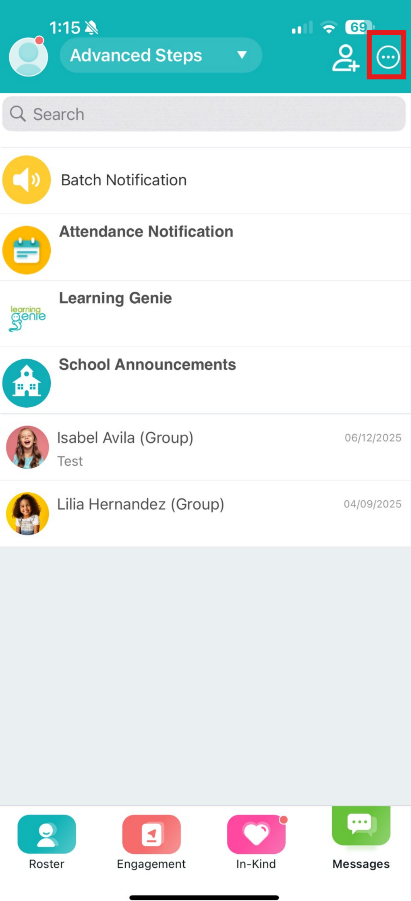
2. In the top-right corner, tap the three dots (⋮) to open the options menu.
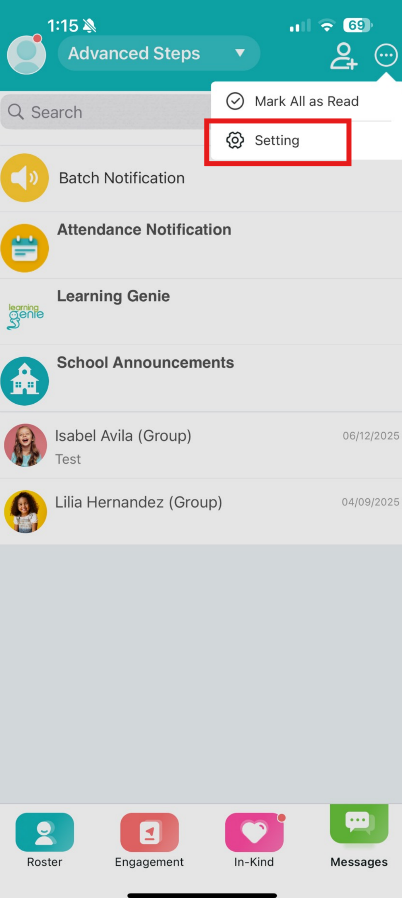
3. Select “Settings” from the dropdown list.
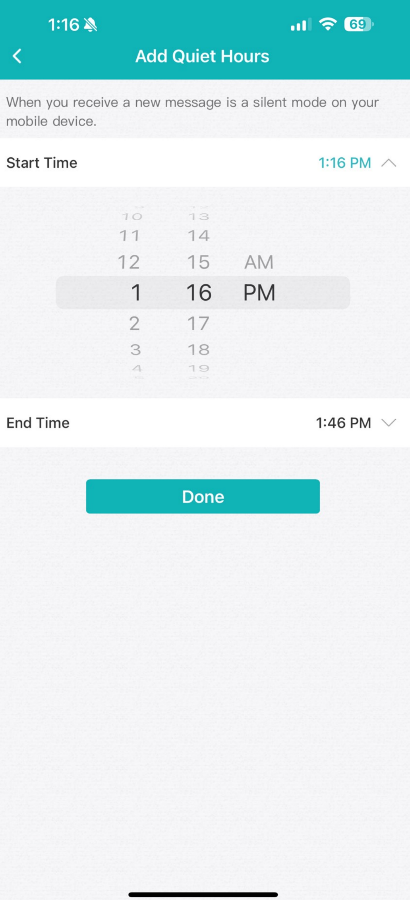
4. Find and toggle on the “Quiet Hours” option.
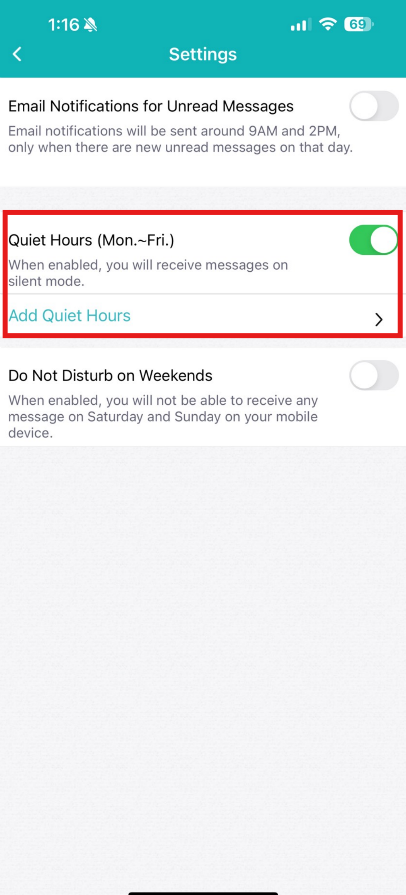
5. Set your preferred Start Time and End Time — this will be the time frame when notifications are paused.
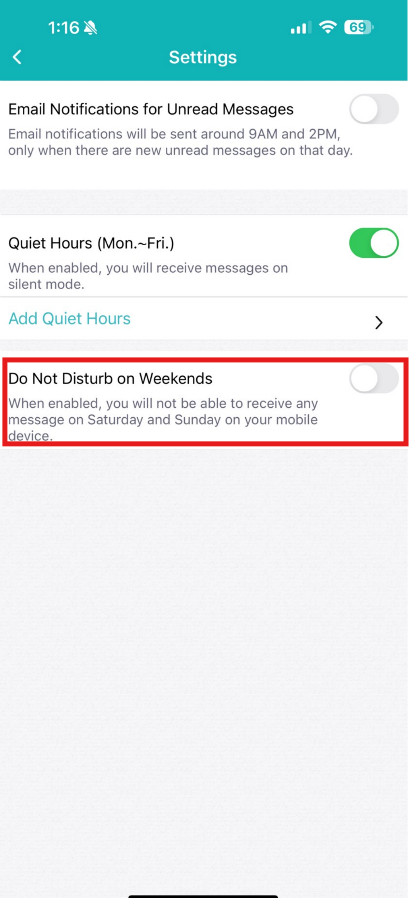
6. (Optional) You can also enable “Weekend Do Not Disturb” to silence message notifications on Saturdays and Sundays.
✅ Tip: Even during quiet hours, you can still open the app to read messages anytime — you just won’t receive push notifications during your set hours.
Need Help?
If you run into issues or have questions, the Learning Genie Support Team is here for you!
Email: help@learning-genie.com
Phone: 760-576-4822