How to generate attendance reports
Learning Genie makes it easy to generate and download attendance reports from both the Web Portal and the iPad App. Below are step-by-step instructions for each platform:
Web Portal
You can download attendance reports for selected dates for ALL sites/classes. Here's how:
1. Go to "Attendance" > "Attendance Review".
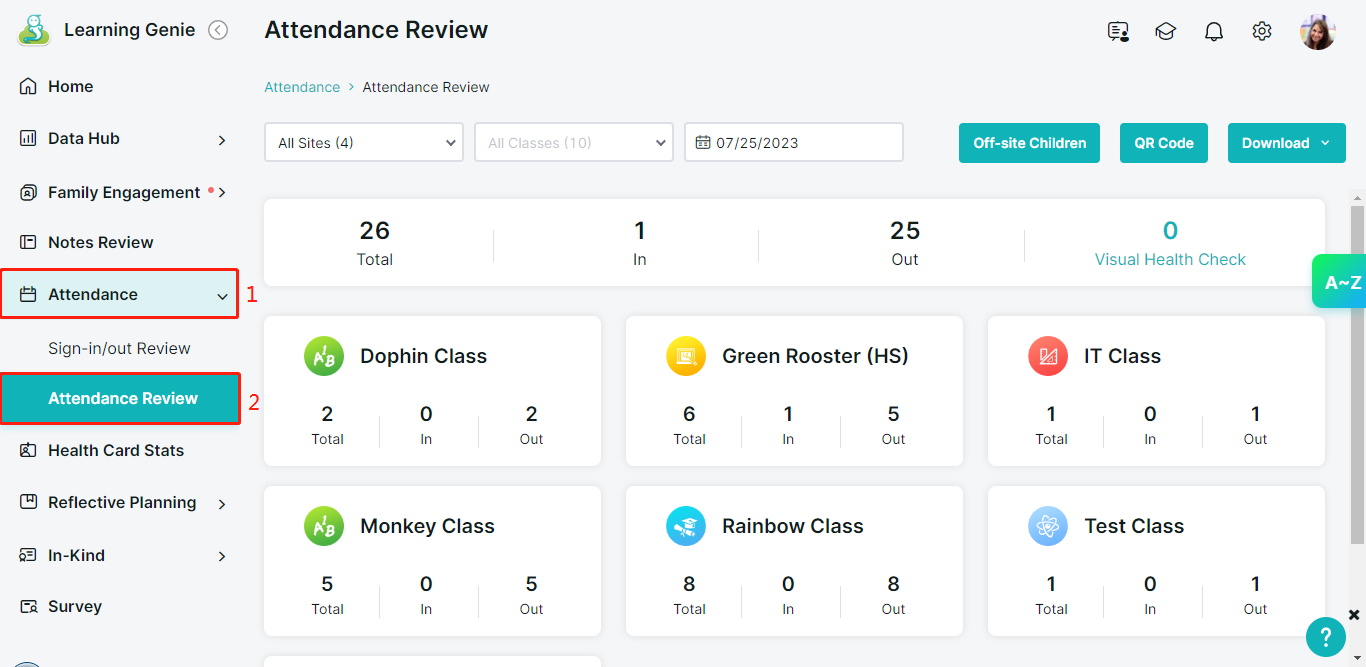
2. Select "Download".

3. A drop-down menu will appear with the following options:
Download Data (Excel)
Download Data (PDF)
Batch Download Individual Child Attendance Data - By Child View (Excel)
Download Attendance Statistics - By Class View (Excel)
Select a quick button "Last Week", "Last Two Week", or "Last Month" or select specific dates using the single arrow (to go back to last month) or the double arrow (to go back one year).
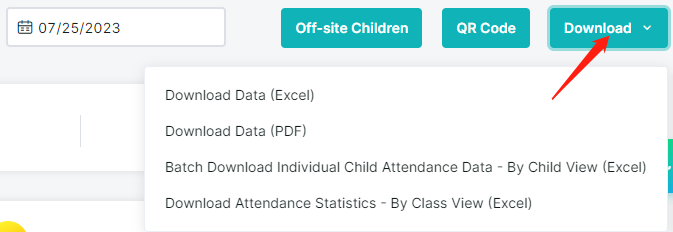
4. Select "Download".
You can download monthly attendance reports for INDIVIDUAL CLASSROOMS. Here's how:
1. Go to "Attendance" > "Attendance Review".
2. Then, select an individual classroom.
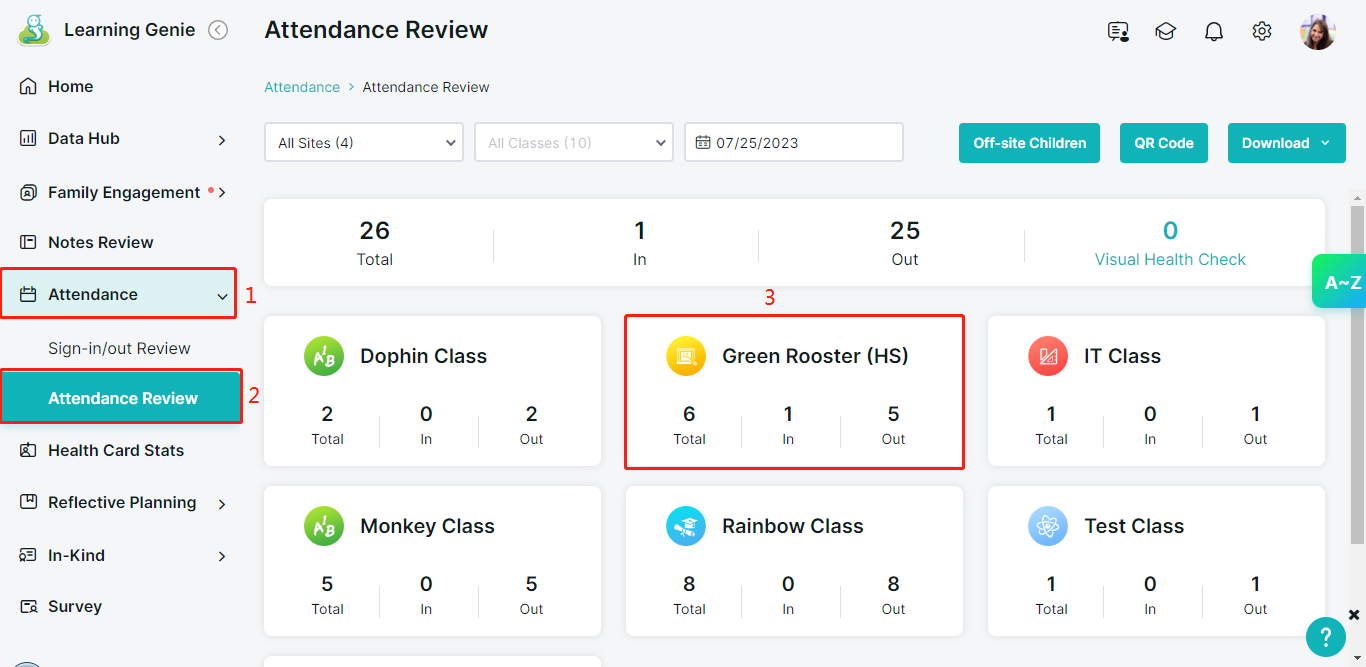
3. Select "Download".
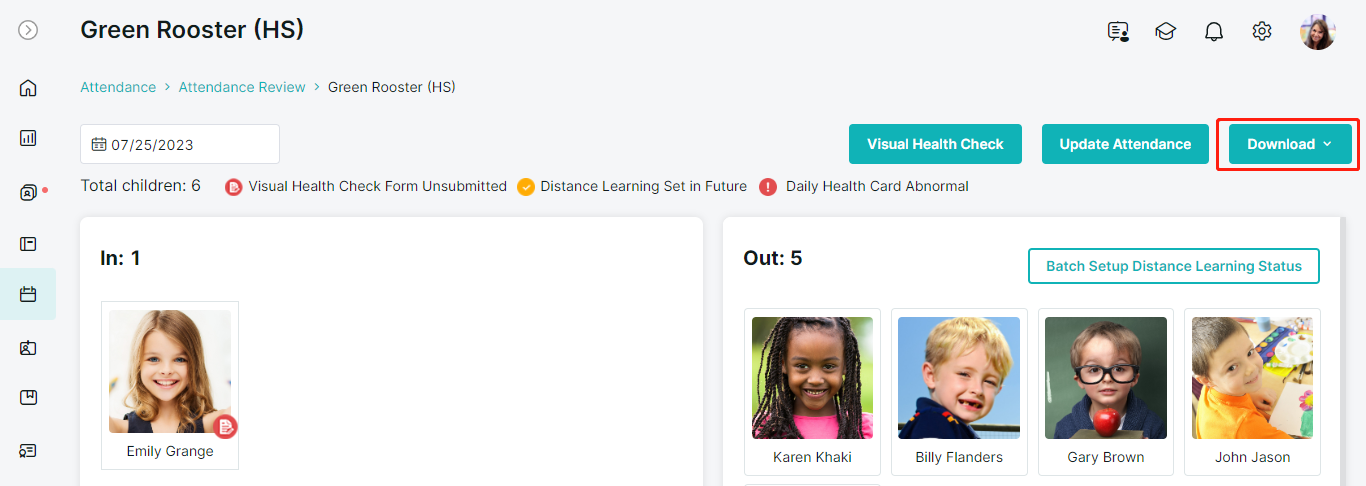
4. A drop-down menu will appear with the options: "Batch Download Individual Child Attendance Data (Excel) or (PDF)" or "Download Individual Child Attendance Data (Excel) or (PDF).
Please note: Batch download will compile all students' reports into one file document. The individual download option will download separate reports for each student in the class, all in one zip file.
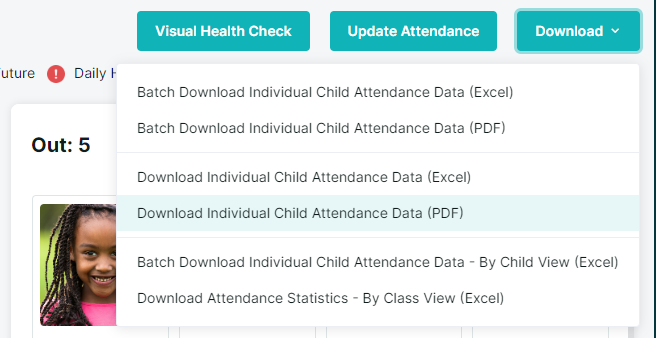
5. Select a month.
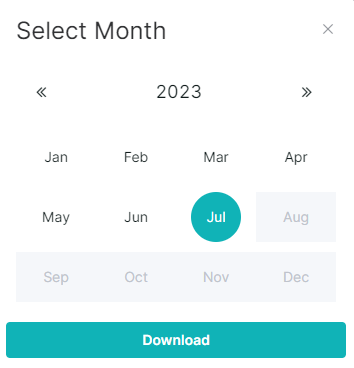
6. Select "Download".
You can download monthly attendance reports for individual children. Here's how:
1. Go to "Attendance" > "Attendance Review".
2. Then, select an individual classroom.
3. Select a specific student in the classroom.

4. Select "Download".
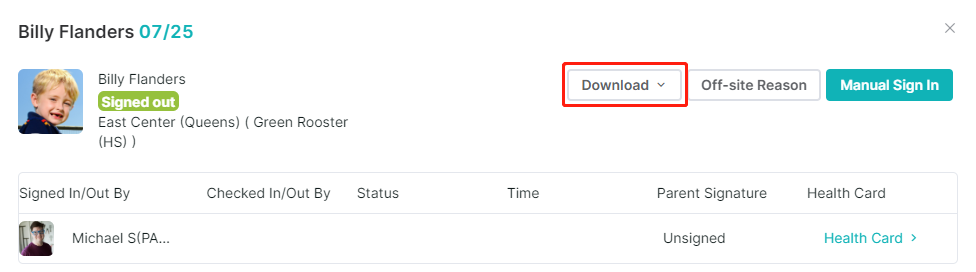
5. A drop-down menu will appear with the option to "Download Individual Child Attendance Data" in (Excel) or (PDF).
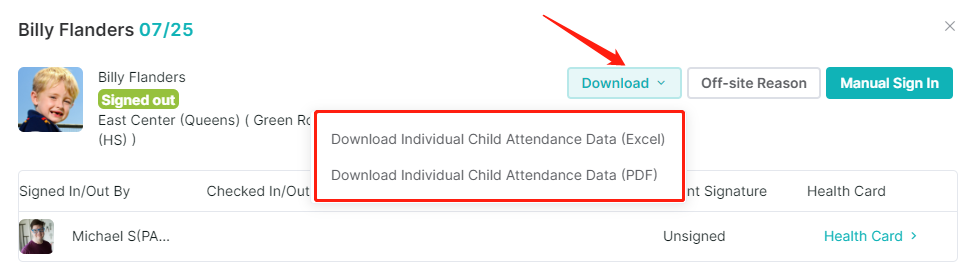
6. Select a month.
7. Select "Download".
Monthly Class Attendance Report Export
You can now download a monthly class attendance report directly from Attendance Review. This pre-formatted monthly spreadsheet summarizes daily attendance, absences, and custom status codes, significantly reducing manual data entry for agencies.
How to download:
Go to "Attendance" > "Attendance Review".
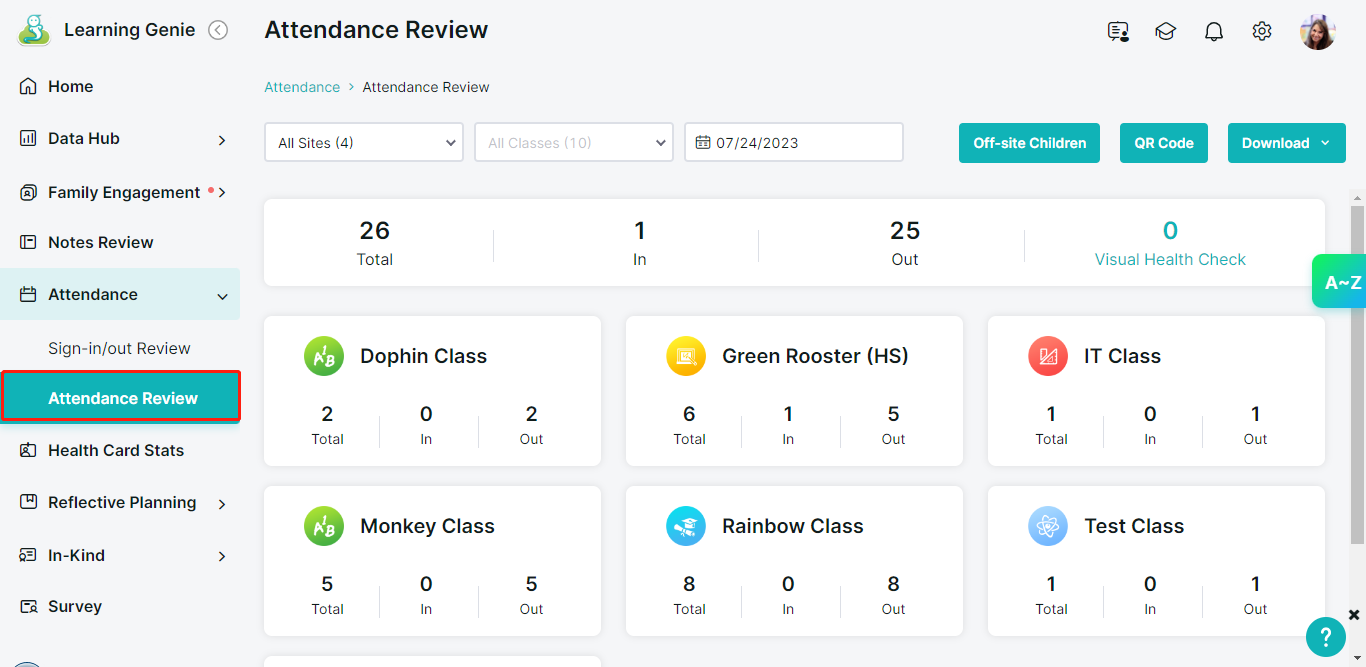
Select an individual classroom.
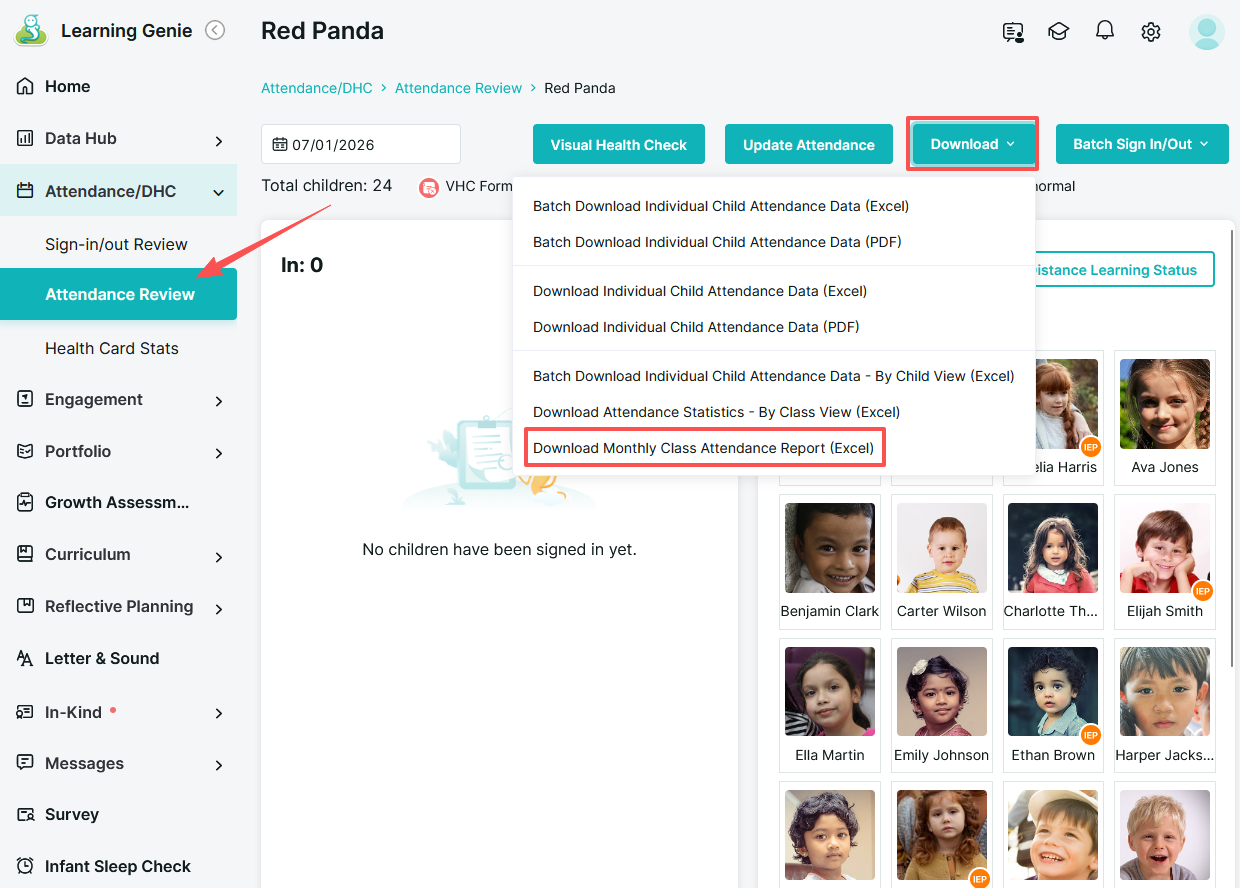
Select "Download".
Choose the Monthly Class Attendance Report option from the drop-down menu.
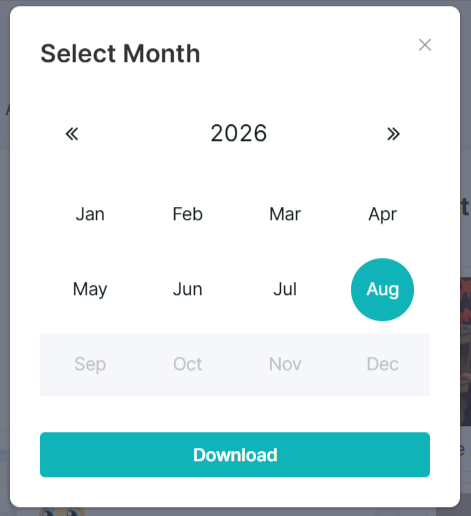
Select the desired month and click "Download".
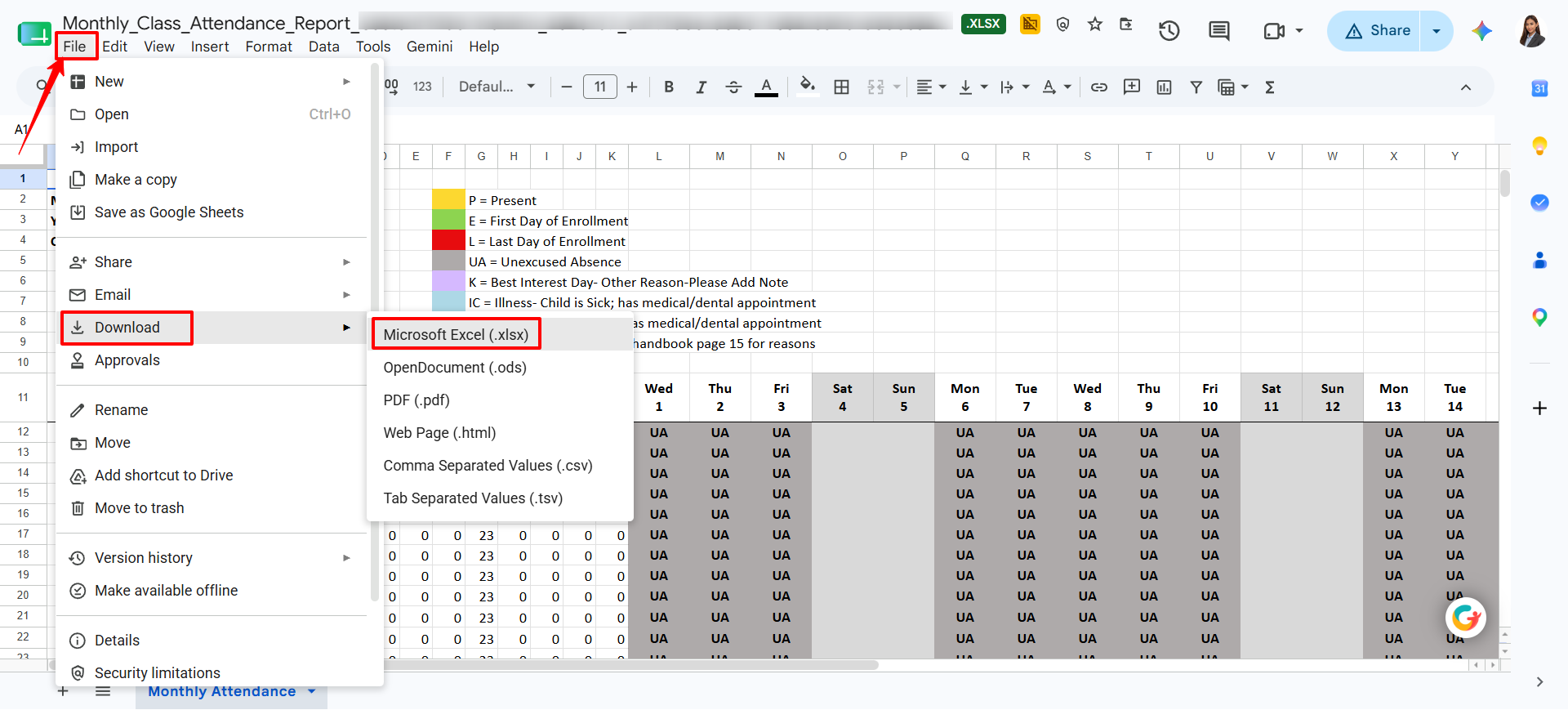
Once the file is ready, click Download to save the Excel file to your device.
About the Report
The exported spreadsheet includes:
Daily attendance status for each child across the selected month
Absences and their associated reasons
Custom attendance status codes configured by your agency
This report is designed to be submitted or uploaded to external agency systems with minimal additional formatting.

iPad
You can download attendance reports for each site/classroom. Here's how:
Go to "Attendance/Health Card" and select "Attendance Review"
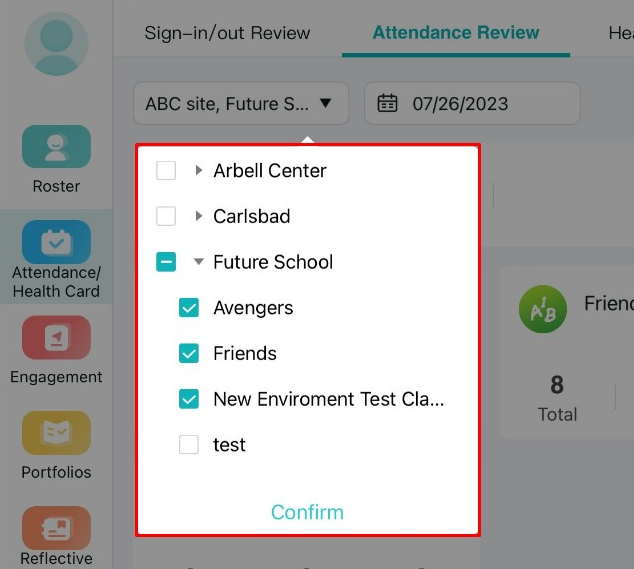
Select the little down arrow under "Attendance Review" to select more than one classroom
Please note: All selected classrooms within a site will be saved to the same document
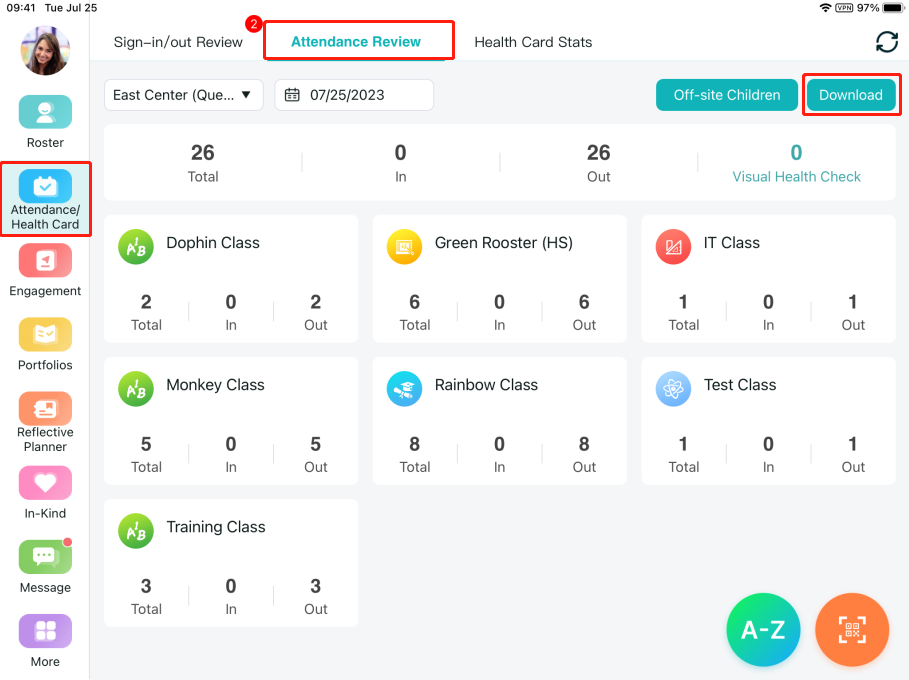
3. Select the download icon in the upper right corner
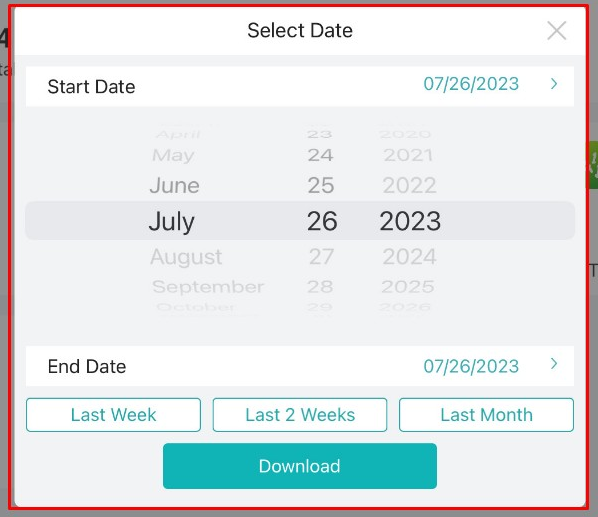
4. Select the dates for the report from the calendar and click the Download button
5. A message will appear "Download Tip", then press Ok.
Please note: An email will be sent to your email. Please check your inbox to follow the next steps to download the report:
Re-login to Learning Genie on Web Portal
A message will appear "Agency Attendance Statistics"
Select the download option: Excel or PDF
Need Help?
If you run into issues or have questions, the Learning Genie Support Team is here for you!
Email: help@learning-genie.com
Phone: 760-576-4822