How to add Learning Media Channels
This article explains how to add Learning Media channels in Learning Genie and how to reorder them once they have been created.
It’s easy to add Learning Media channels. Here’s how:
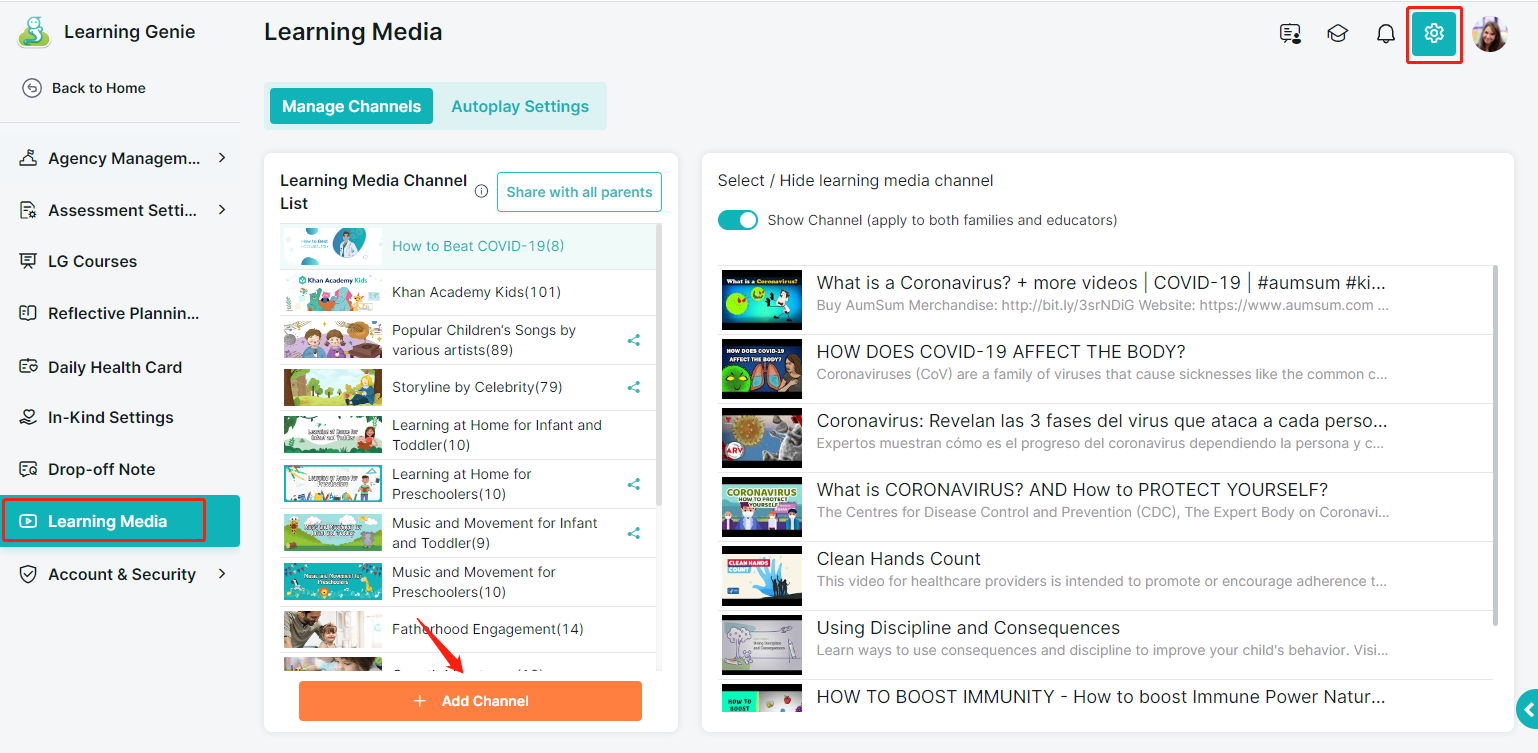
1. Go to “Admin Settings” > “Learning Media," and click the “Add Channel” button.
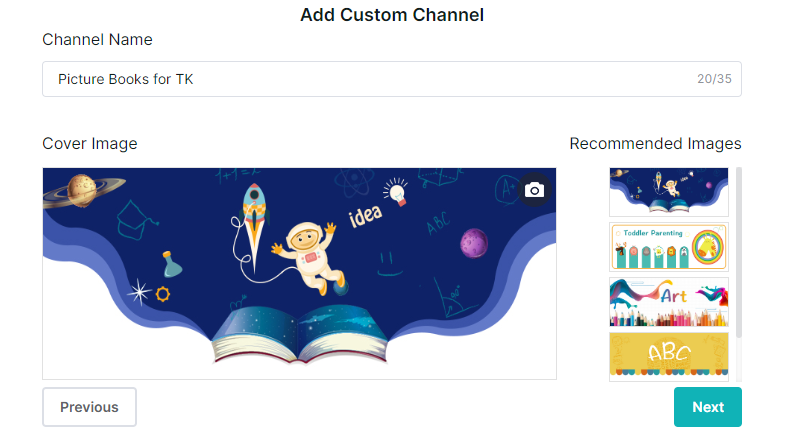
2. Name this channel, and add a cover image (you can use the recommended images or upload a new one). Then click the “Next” button to proceed.
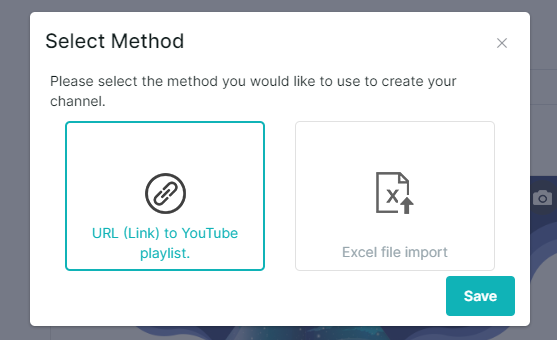
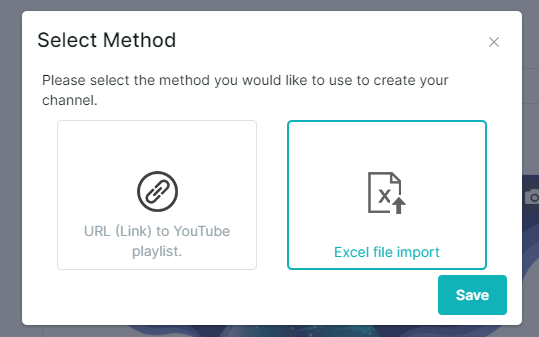
3. You can create the channel through the following two methods:
3.a URL (link) to YouTube playlist
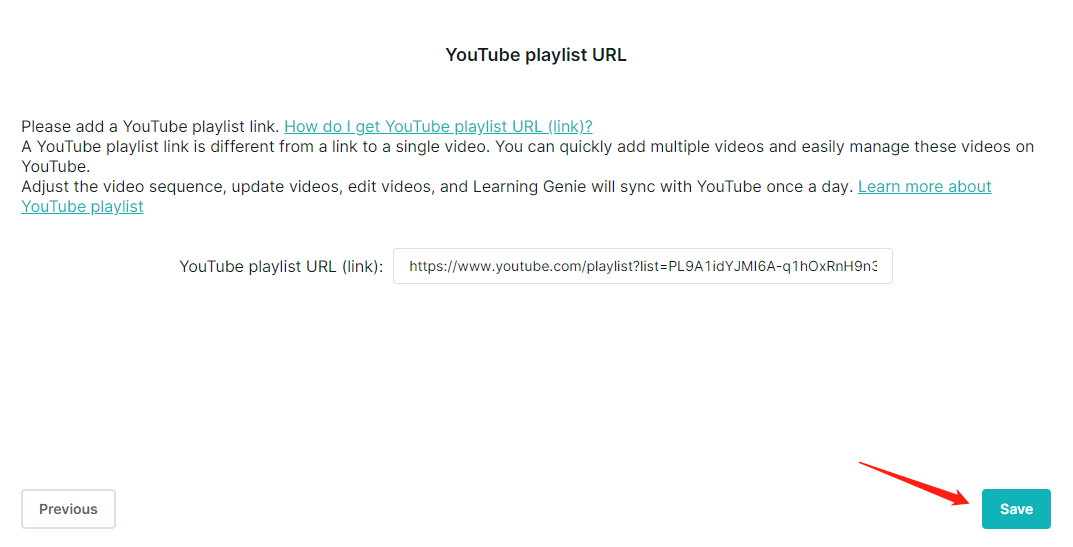
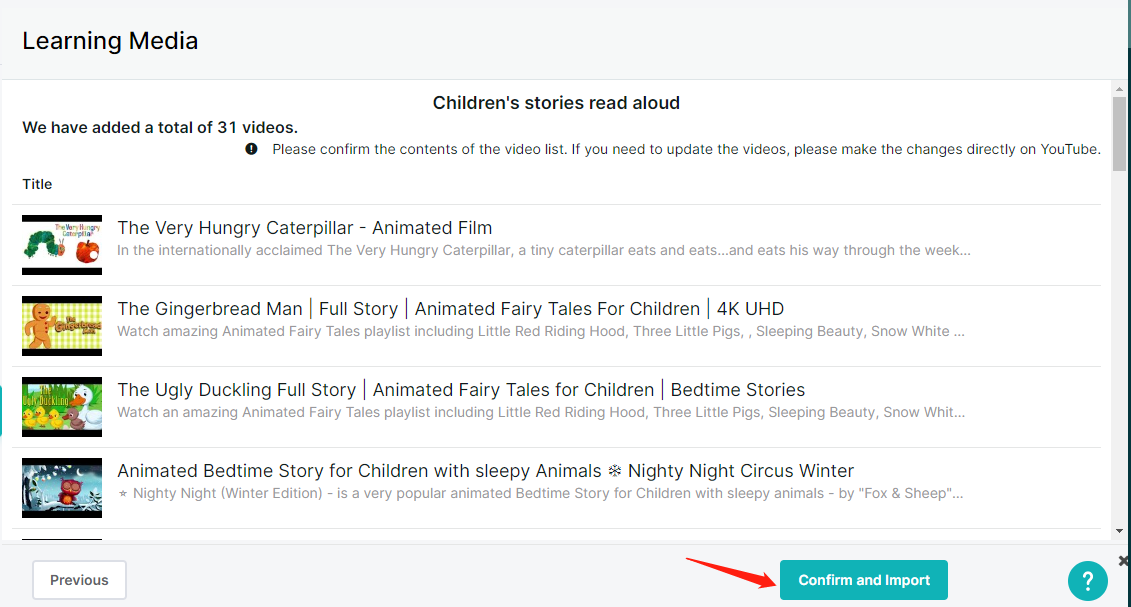
Please enter the URL of the Youtube playlist, not the link to a single video, then click the “Next” button to preview the videos that will be added.
Click the “Confirm and Import” button, and this channel will be created successfully
3.b Excel file import
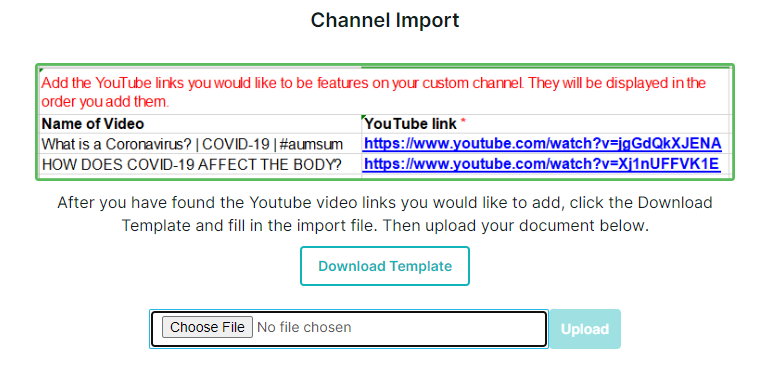
Please download the template and fill in the import file. Then upload this document to preview the videos that will be added.
Click the “Confirm and Import” button, and this channel will be created successfully.
How to Reorder Learning Media Channels
You can arrange your Learning Media channels in the order that works best for your program. This allows you to prioritize frequently used channels and create a more intuitive browsing experience for teachers.
Note: This organization feature applies to Learning Media channels (and Video Books channels). It does not apply to playlists within channels.
1. On the Learning Media page, locate the list of your existing channels.
2. Click and drag a channel using the drag handle (three horizontal lines or dots) next to its name.
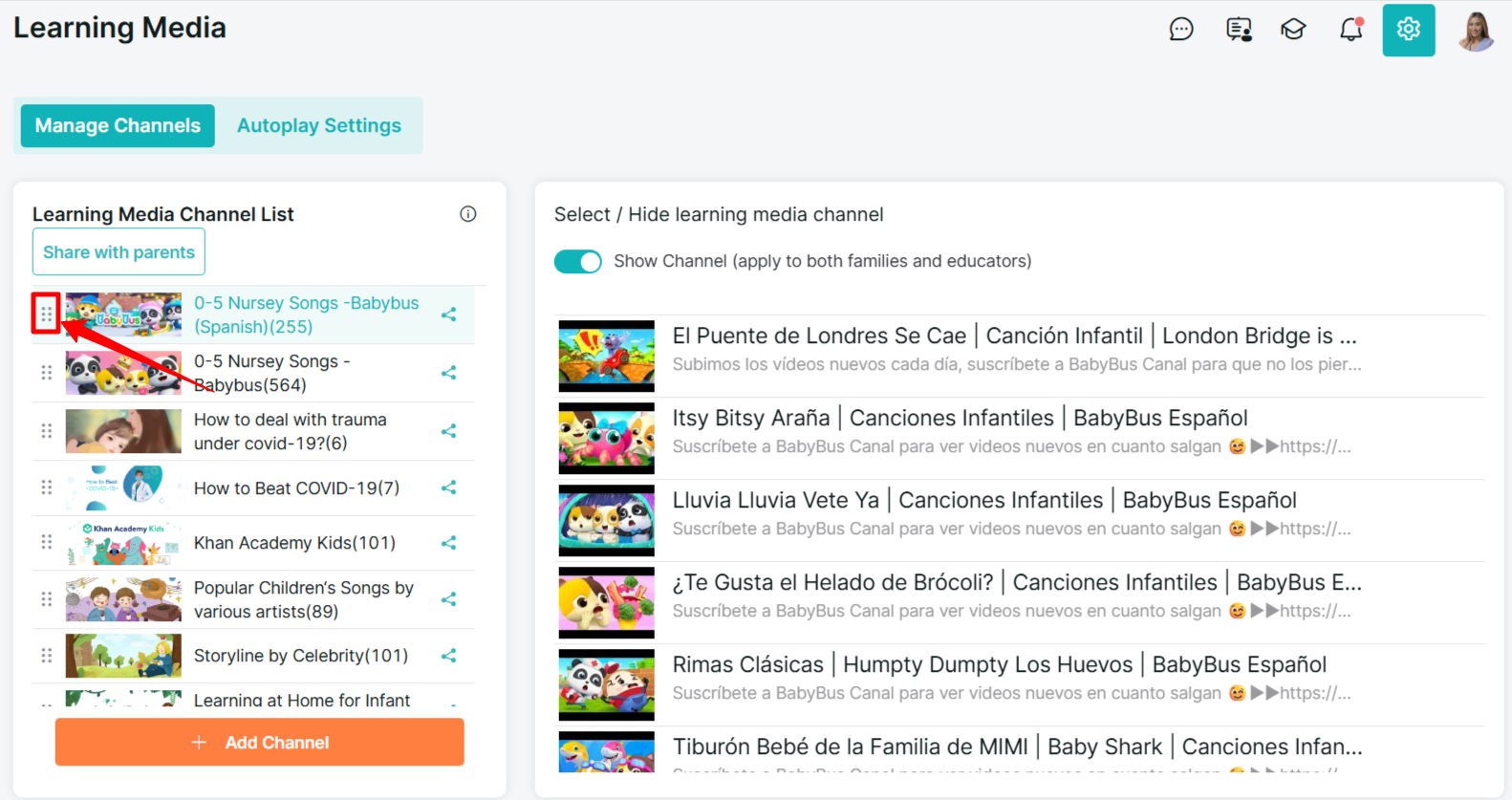
3. Drop the channel into your preferred position in the list.
4. The new order is saved automatically.
Repeat these steps to arrange all channels in your desired sequence.
Need Help?
If you run into issues or have questions, the Learning Genie Support Team is here for you!
Email: help@learning-genie.com
Phone: 760-576-4822